
Web Accessibility Handbook (HKSAR Guideline)
1. Introduction
To enable all people, including persons with disabilities, to live independently and participate in all aspects of life, we should take every opportunity to make information accessible to all.
1.1 Equal Opportunities for Persons with Disabilities
With the rapid growth of the Internet, ensuring that websites are accessible to persons with disabilities is now an essential consideration to enable their full integration into society.
This is also in line with the spirit of the United Nations’ Convention on the Rights of Persons with Disabilities, which came into force for the People’s Republic of China, including the Hong Kong Special Administrative Region (HKSAR), on 31 August 2008.
1.2 Promoting Web Accessibility for Persons with Disabilities
Over the years, the HKSAR Government has been actively promoting web accessibility to help persons with disabilities access online information and services and enhance their user experience.
Since 1999, the Government has promulgated accessibility guidelines and best practices for the design of government websites. The guidelines are also available to the public as a reference for making their websites accessible. The latest version of the guidelines is available at: https://www.webforall.gov.hk
1.3 Web Accessibility Handbook
This Handbook is designed for senior executives and managers to better understand the importance of web accessibility and show how it can be successfully implemented.
2. What Is Web Accessibility
Some organisations may consider their websites to be “accessible” when the websites are easily found by search engines. However, the core principle of web accessibility is not about whether people “can find you”, it is about designing sites for everyone, no matter who they are or how they access the Internet. It specifically addresses the needs of persons with disabilities, and ensures acceptable ease of use for all levels of ability.
The question you need to ask is:
“Can ALL people, including persons with disabilities, access the information that your website provides?”
By adopting relevant guidelines when designing websites to cater for the needs of persons with disabilities, you are making your website more userfriendly, maximising your customer base and showing that you are an organisation that cares.
3. Why Websites Need to be Accessible
There are many reasons why websites need to be accessible.
3.1 Social Responsibility
Everyone has a responsibility to treat persons with disabilities the same as we treat persons without disabilities. This is especially important for websites, as they often enable these people to live a more independent life and maximise their potentials in a knowledge society. In some cases a website is the only way for persons with disabilities to access up-to-date information.
3.2 Legal Responsibility
The Disability Discrimination Ordinance (Cap 487) has created a legal duty for organisations to ensure their services are available to everyone regardless of disability. This principle is applicable to information and services provided through websites.
3.3 Access to Hidden Markets
Effective web accessibility allows:
Government websites to reach more citizens.
Corporate websites to reach and retain more online customers.
3.4 Rank More Prominently in Search Result
Adopting web accessibility design is in effect making websites more accessible not only to persons with disabilities but also the search engines. Many of the features making a website accessible, such as enforcing proper coding of the webpages and presenting the contents in a clear and structured manner, are inherent characteristics of a search engine friendly website. Therefore, the more accessible your website is, the more effective your search performance is, and the more potential customers you can reach.
3.5 Lower Costs
Attention to web accessibility guidelines on all website projects saves time and money in the long term, especially when new releases of systems are rolled out.
Building accessible websites requires good coding techniques that in turn lead to websites that are easier to maintain and are compatible with different web browsers and devices such as smart phones and tablets
4. Myths About Web Accessibility
There are many myths with regards to web accessibility. Some of these are outlined below and a good understanding of them will help you drive web accessibility in your organisation.
Myth 1: Persons with Disabilities Do Not Use Websites
Many people assume that persons with disabilities do not use websites.
In fact the complete opposite is the case.
Persons with disabilities often use websites more than persons without disabilities. Websites have been a great enabler for these people to live a more independent life by shopping and socialising online.
Myth 2: Accessible Websites Are Boring
Designers are fearful that building an accessible website will lead to a website that is boring. This is not necessarily the case.
Web accessibility relies upon good coding techniques as well as simple design.
Simple design does not necessarily mean boring design.
Myth 3: Web Accessibility Is Expensive
Many people think building an accessible website is expensive and resist this process.
In fact building an accessible website in general can save you money in the long term through better programming discipline and good coding techniques.
These techniques lead to websites that are simpler to maintain and use with a range of browsers and devices
5. How Persons with Disabilities Use Websites
Most people think about visually impaired persons when it comes to accessibility, however there are many different types of disabilities and hence many different techniques that persons with disabilities can use to access websites.
Disabilities fall into four major categories:
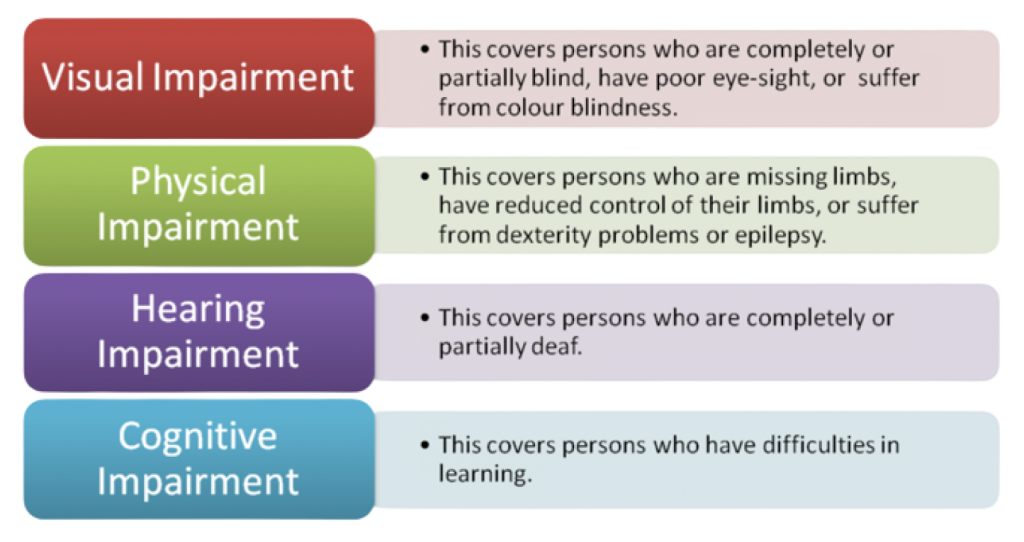
In addition, there are many others who have temporary disabilities, for example, a wounded arm. Such injuries can make accessing websites just as difficult as it is for persons with permanent disabilities.
Examples of disabilities and the ways to overcome the constraints are outlined below.
5.1 Visual Impairment
In this case people either cannot see at all or have difficulty in seeing a computer screen.
It is critical that websites are designed to work with screen readers and screen magnifiers. It is also important that colours are visible to persons with colour blindness.
5.2 Physical Impairment
In this case the person generally does not have the ability to access a website with a keyboard or a mouse in a normal way. This kind of impairment varies from someone who has dexterity problems and finds a mouse difficult to use, to someone who is not able to use a mouse or keyboard at all because of missing limbs. People with epilepsy may react to flashing images.
It is important to make buttons large enough for easy clicking, and not to place important items too close together, otherwise wrong item might be clicked by mistake.
Additionally, it is important to ensure the website works with assistive technologies such as voice control software, which allow a person to access a website using voice commands.
5.3 Hearing Impairment
With the increase in the usage of videos and audios on the web, it is important to consider how this impacts people who cannot hear. If information is conveyed in audio format, it is necessary to ensure there is an alternative way to access this information.
This can be as simple as providing a text transcript of the audio content or subtitles on the video. A text transcript has an added advantage for persons with visual impairment as well.
5.4 Cognitive and Learning Impairment
Although it is difficult to define cognitive impairment, it generally refers to persons with specific learning difficulties or mental illness. These people have greater difficulty in performing mental tasks than average persons.
Although they do not require any special tools when browsing websites, they may find it more difficult than average persons to interpret the content. This should be kept in mind when developing contents for websites.
6. Top 10 Concerns from Persons with Disabilities
6.1 Unable to Skip Adobe Flash and Moving Objects
Affected Group: All Persons with Disabilities
Website owners should first question the need for Adobe Flash and moving objects, which often frustrate all people using websites.
If deemed essential, coding techniques that allow users to skip past these items should be implemented.
Developers may also adopt cascading style sheet techniques that allow important items to be presented first within the code and hence be read first by screen readers.
Ensure users can skip past other blocks such as lengthy navigation bars.
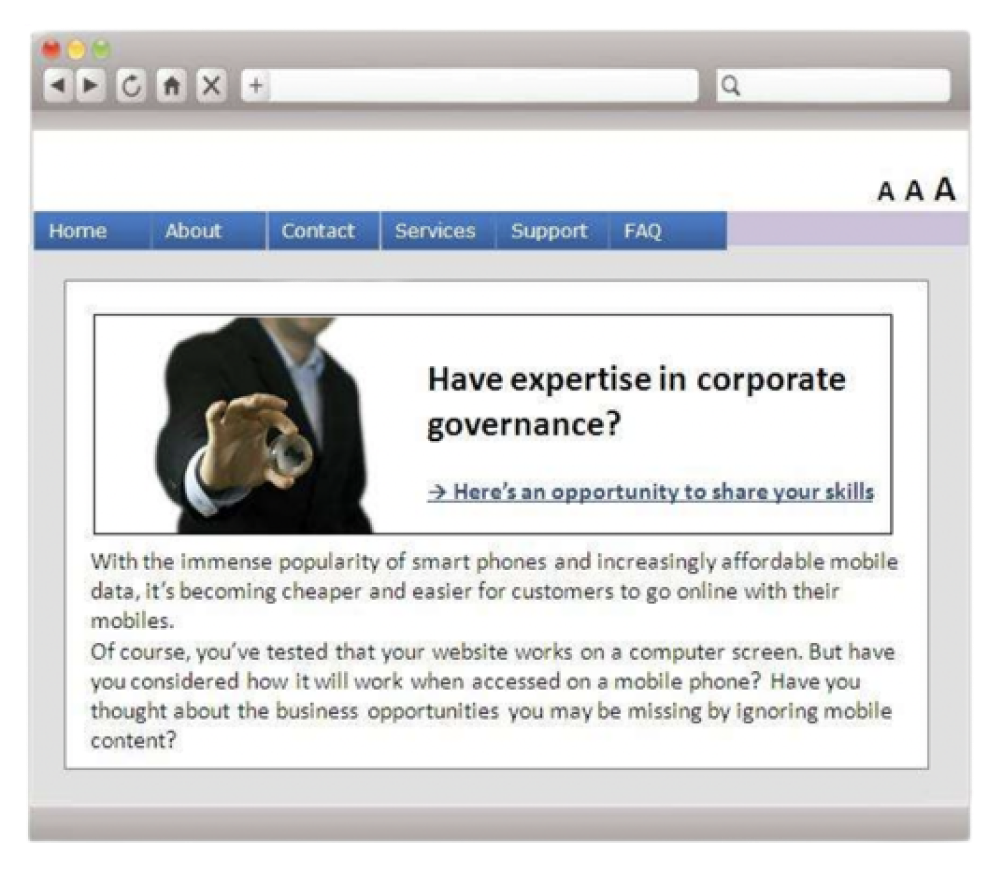
The large Flash element on this example blocks the users from getting to the main content.
Include a mechanism such as adding a “Skip to Content” button at the beginning of a webpage to rectify the issue in cases where Adobe Flash or moving objects must be used.
6.2 Small Font Sizes or Insufficient Colour Contrast
Affected Group: All Persons with Disabilities
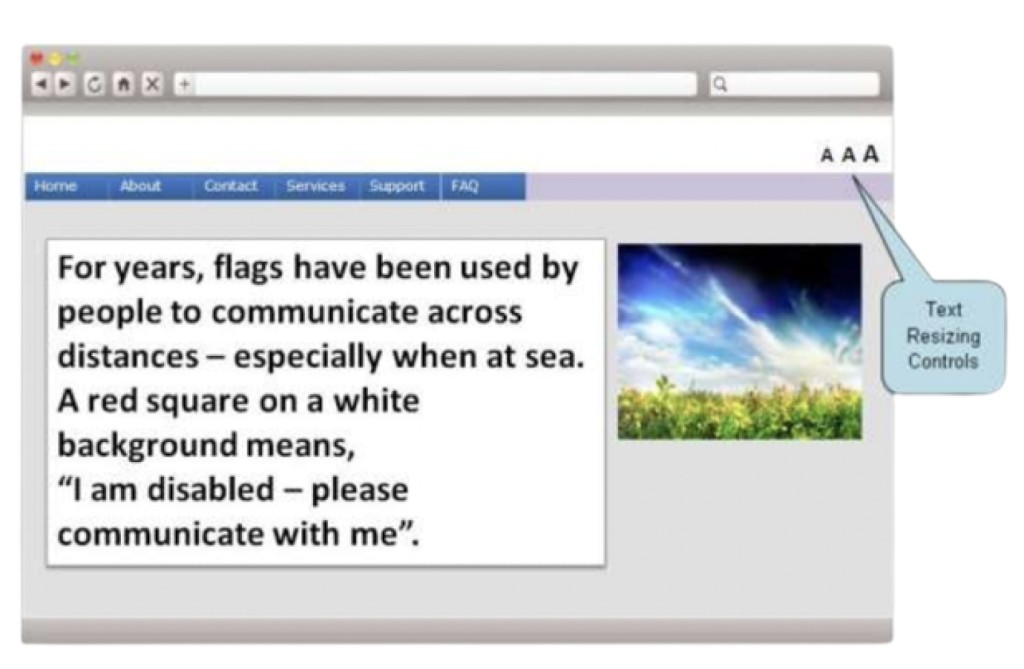
Design websites with larger font sizes and use high contrast colour schemes.
It is a good practice to provide functions within a website that allow users to enlarge the font size.
In addition, ensure websites are built so that built-in browser text size tools work as they should
6.3 No Alternatives for Non-text Information
Affected Group: Persons with Seeing Difficulties
Alternatives should always be provided for non-text information.
Images should contain descriptive text alternatives that effectively describe the images.
Video content should include text transcripts that can be interpreted by screen readers.
Consider the photo below. If you have this photo on your website, how would you communicate what this photo is to a visually impaired person using screen readers?
Screen readers will read the text alternative of the image. Ensure text alternatives are meaningful and suitably descriptive.
The text alternative for this image might read “Photograph of Hong Kong Harbour and Hong Kong Island skyline on a sunny day”.
6.4 Website Structure is Too Complicated to Understand and/or Navigate Using Assistive Tools
Affected Group: Persons with Seeing Difficulties and Hearing Difficulties
Complex website structures make a website difficult to use for persons with and without disabilities. Try to adopt the simplest structure as far as possible to convey your content.
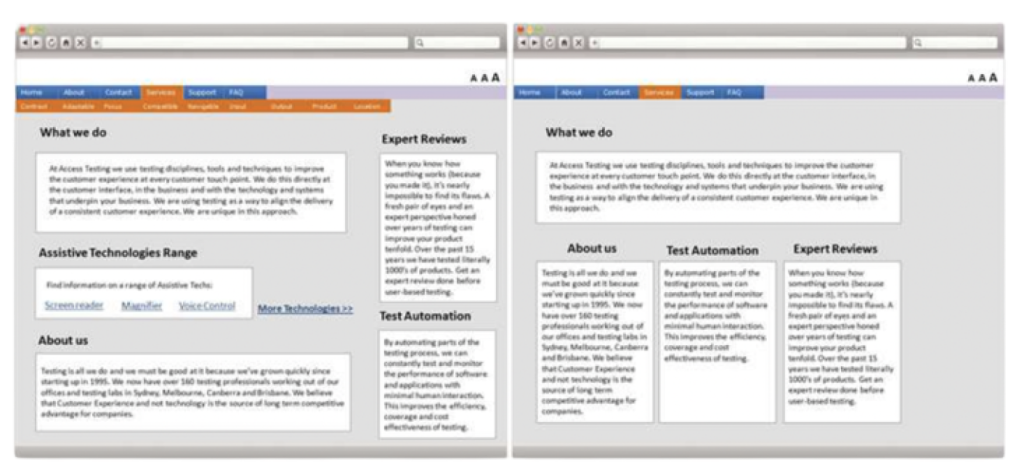
Compare the two examples of webpage layout below.
The one on the left has five content areas in a less ordered structure and has 13 additional links.
The one on the right has four content areas in an ordered structure and six additional links.
While it is sometimes difficult to reduce the number of items on your webpages, you can make your webpages simpler, for example, with fewer links, so that it will be easier for persons with disabilities to access your content.
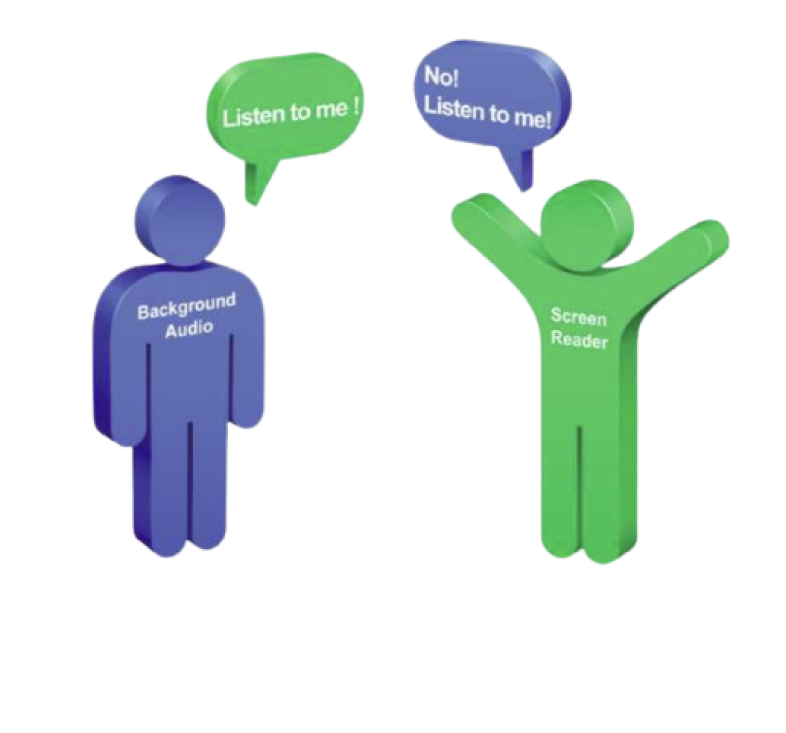
6.5 Difficulties in Browsing Websites with Background Audio
Affected Group: Persons with Seeing Difficulties
Sound that plays automatically on websites can be annoying to some people, and it is particularly so for people who are trying to listen to screen readers.
Ideally, background sound playing should be user-initiated, or at least there is a convenient navigation option to turn off website audio.
6.6 Websites with Outdated Text Versions
Affected Group: Persons with Seeing Difficulties
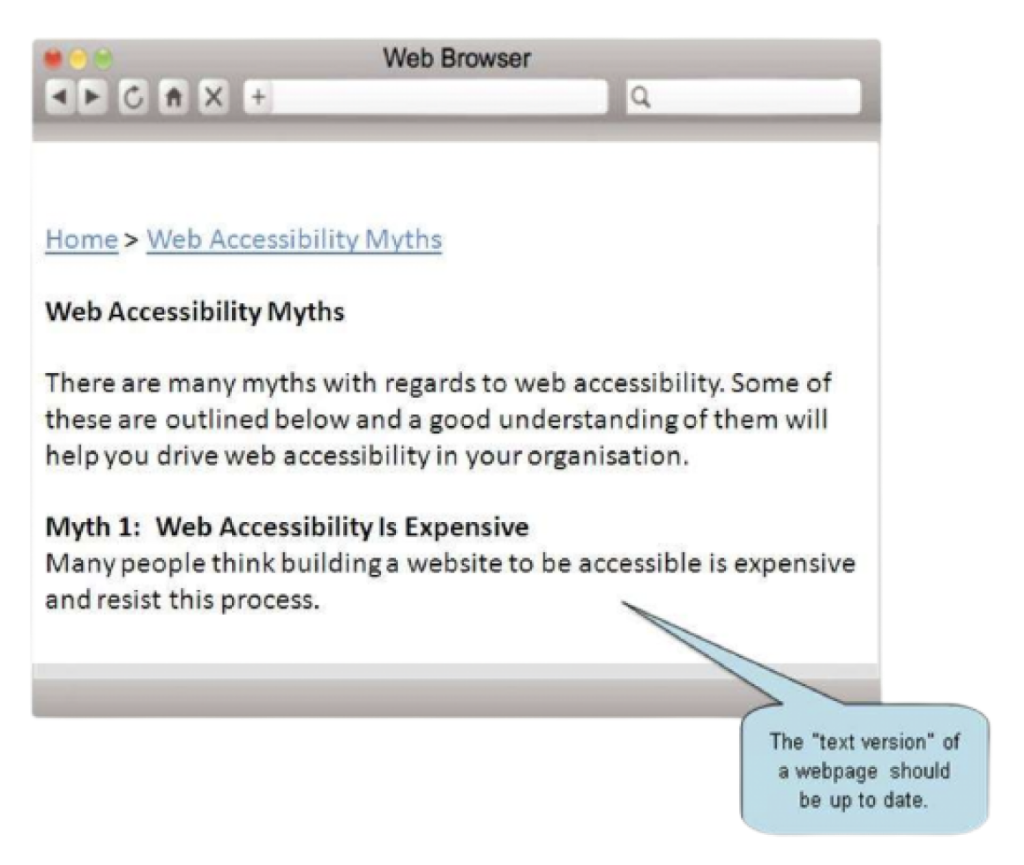
Text versions of websites are often neglected, particularly as website changes take place over time.
Webmasters should pay the same amount of attention to maintain these sections as they do with other sections.
6.7 For Time-limited Functions, the Time Allowed is Too Short
Affected Group: Persons with Restricted Movement
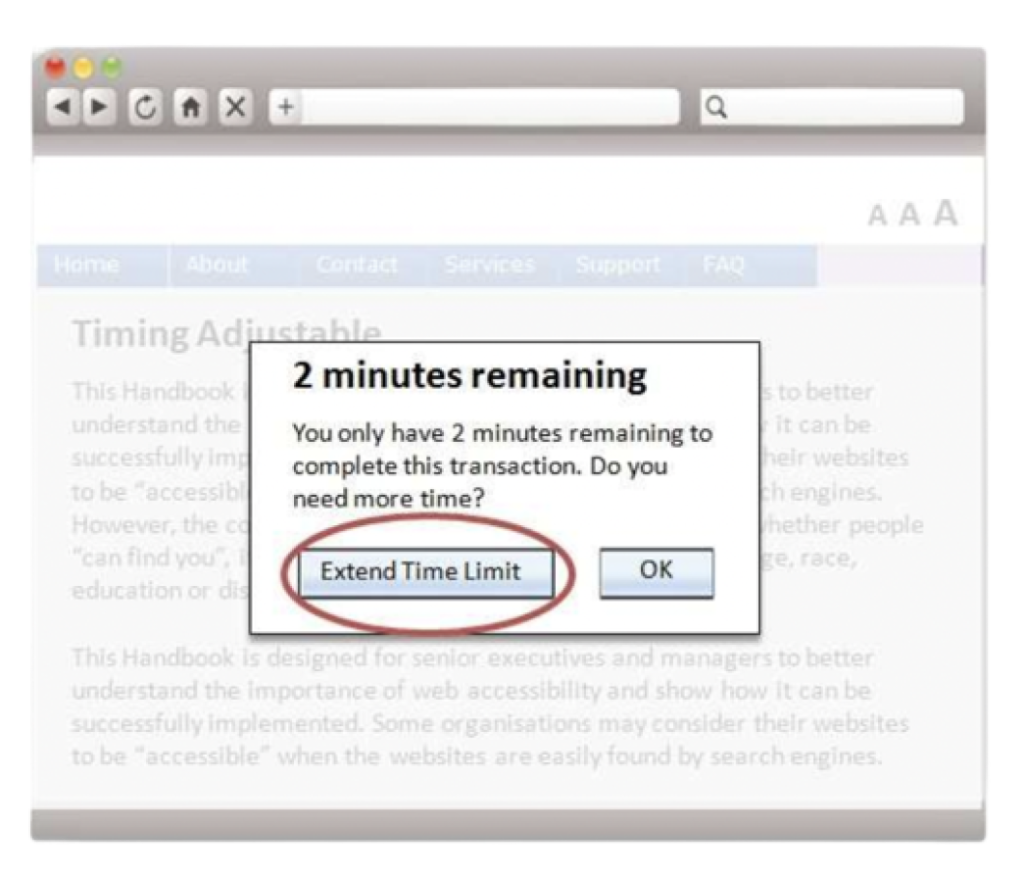
Ideally extend the time limits on websites to ensure users have adequate time to interact with the web content.
If this cannot be achieved, provide a simple mechanism that allows users to extend the time limit in the middle of a process.
6.8 Volume Bars are Difficult to Control
Affected Group: Persons with Restricted Movement
Design larger volume bars so that interactions with these items using a mouse are easier.
In addition, keyboard shortcuts should be provided for adjusting volume.
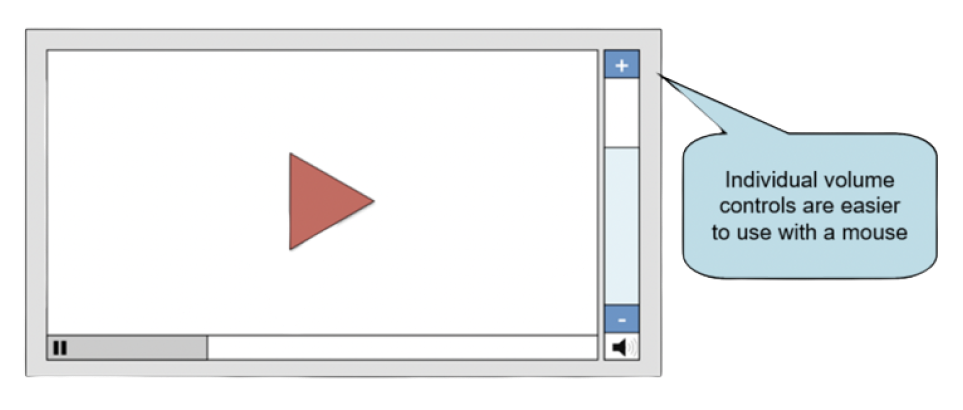
Typical volume sliders, as illustrated below, are difficult to use because the portion that needs to be clicked is small and must be moved in subtle increments in order to adjust volume.
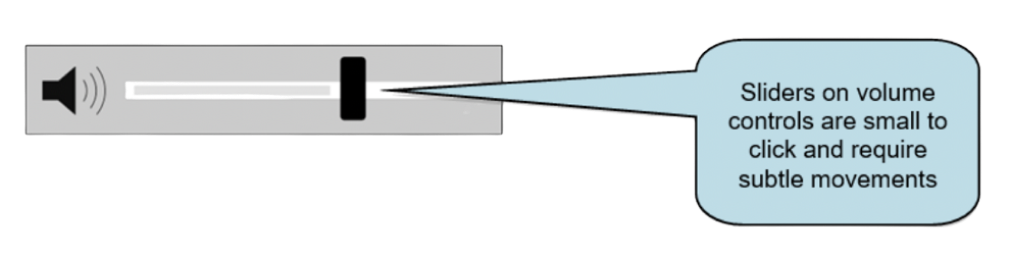
A better approach is to use individual buttons for increasing and decreasing volume as these can be clicked rather than slid to change volume.
This also makes it easier to assign keyboard shortcuts to each button.
6.9 Ambiguous Links for Screen Readers
Affected Group: Persons with Seeing Difficulties
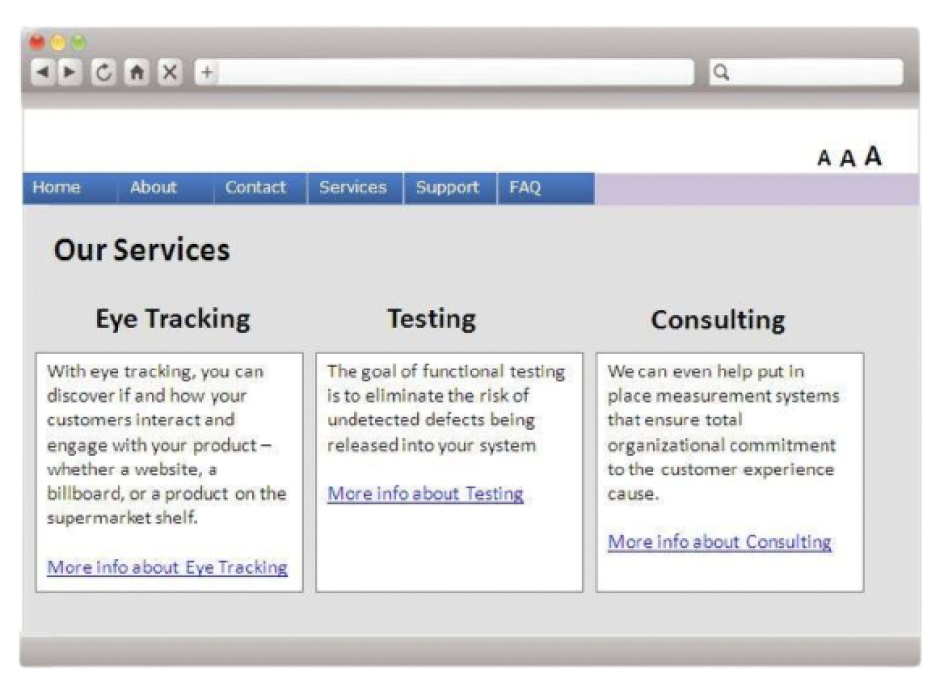
Many websites use links such as “More information” or “Learn more” and have these links for various pieces of content. Although this works for sighted users, people using screen readers will be confused about which link is which. They may discover there are several “More information” links but not know what the links point to.
Websites should use description links in this case. Instead of just stating “More information”, a link should state “More information about product XYZ” so that the user knows where the link will go to just by reading the text.
Note how the links below effectively describe what the links are about and any user will easily be able to understand the difference between the three links.
6.10 Difficulties in Accessing Portable Document Format (PDF)
Affected Group: All Persons with Disabilities
PDF documents should only be used for certain situations, in particular when you have a piece of content that you would like people to download and read offline. In this way, PDF documents can be helpful for persons with disabilities because they can download and read them with the assistive functions built into PDF reading software.
We have to ensure that PDF documents are accessible to assistive technologies, such as screen readers in a correct reading order. We should produce a PDF document from a text-based source document and alternative text should be provided for images (except for decorative images), so that it is readable by Braille devices used by persons with visual impairments. Image-based documents, such as TIF files produced by scanning, should be converted into text-based documents with Optical Character Recognition (OCR) software prior to producing the PDF document.
PDF documents also need to be correctly structured and tagged so as to be accessible. Software such as Adobe Acrobat has many features that allow structure and tagging to be checked and adjusted within a PDF document. The techniques of making accessible PDF document is available at www.w3.org/WAI/WCAG21/Techniques/#pdf
Any content that you would like people to read online should be delivered as standard HTML webpages rather than PDF documents.
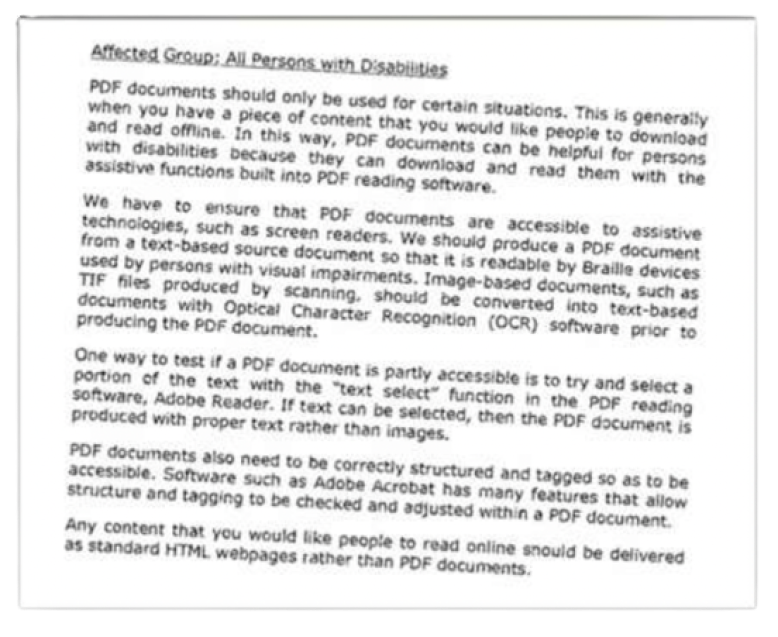
This screen illustrates a common problem with PDF documents that have been scanned by scanners without OCR processing. Although they appear as text to a non-disabled person, they are not text that assistive technology can use.
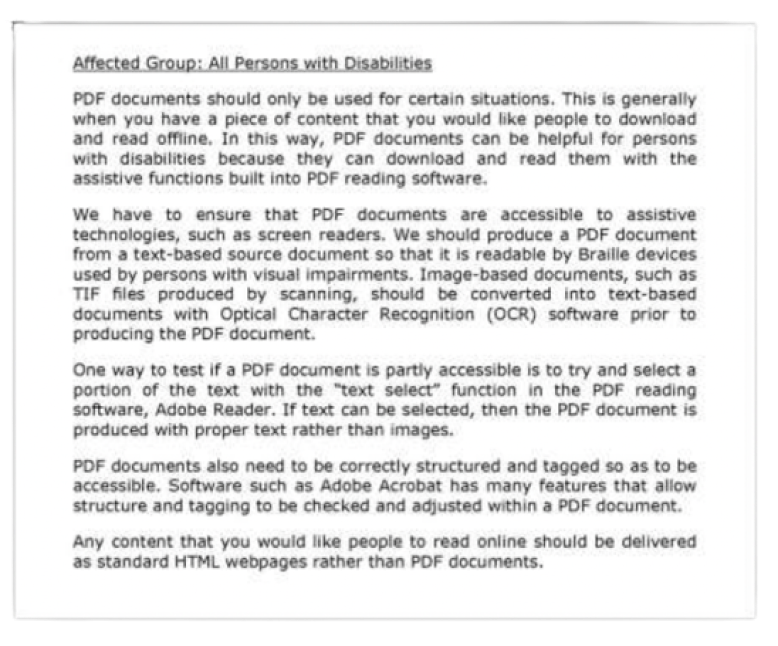
PDF documents should be converted in such a way that they are text that screen readers can convert to speech if required.
7. Accessibility Guidelines
7.1 World Wide Web Consortium (W3C) & Web Content Accessibility Guidelines (WCAG)
Out of the need to support the creation of websites that work for persons with disabilities, the World Wide Web Consortium (W3C) put together the W3C Web Accessibility Initiative (WAI). This brings together people from industries, disability organisations, governments, and research labs from around the world to develop guidelines and resources to help make the web accessible to persons with disabilities. The Web Content Accessibility Guidelines (WCAG) is developed with a goal of providing a single shared standard for web content accessibility. (www.w3.org/WAI/standardsguidelines/wcag/)
The WCAG documents explain how to make web content more accessible to persons with disabilities. WCAG 2.0 (published on 11 December 2008) and WCAG 2.1 (published on 5 June 2018) are both existing standards. WCAG 2.1 extends WCAG 2.0 by adding 17 new success criteria.
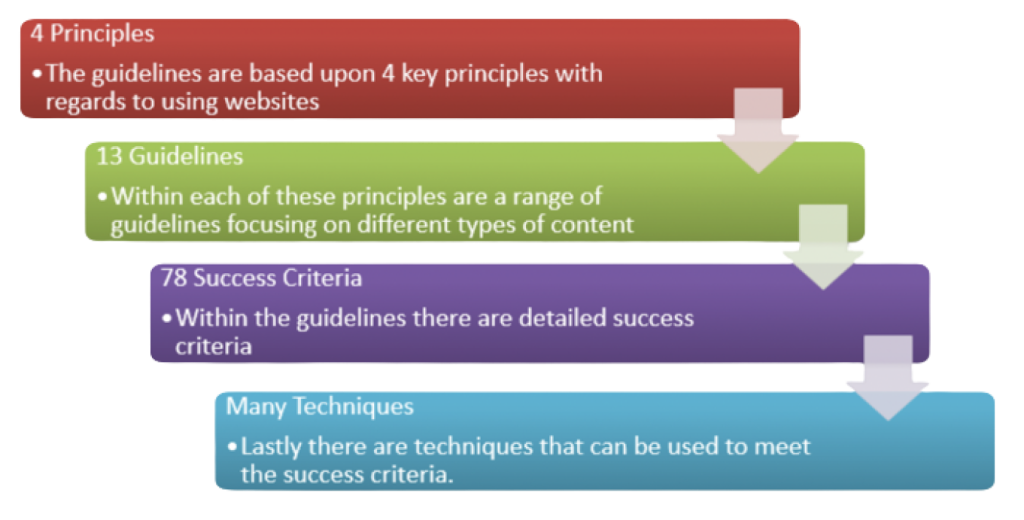
At first glance the guidelines can appear quite complex. However, the guidelines are logical and with some effort, any website developer can understand how to use and comply with these guidelines. The most important thing to understand is that the guidelines consist of four parts as follows:
Structure of WCAG 2.1
The 78 success criteria vary in importance as follows:
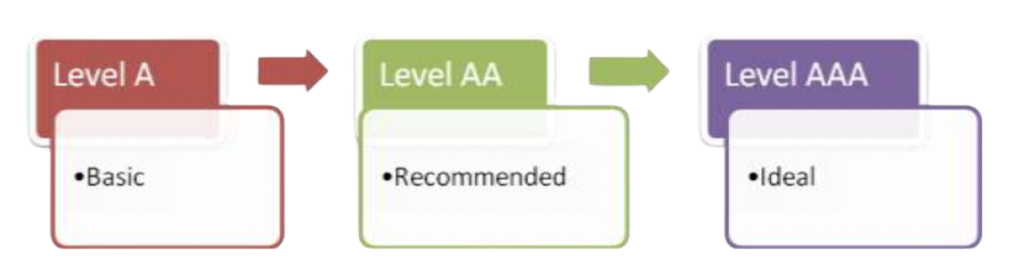
Notes:
For Level A conformance (i.e. the minimum level of conformance), the webpage must satisfy all Level A Success Criteria.
For Level AA conformance, the webpage must satisfy all Level A and Level AA Success Criteria.
For Level AAA conformance, the webpage must satisfy all Level A, Level AA and Level AAA Success Criteria.
7.2 The Guidelines on Dissemination of Information through Government Websites
The HKSAR Government has, since 1999, incorporated web accessibility requirements in the Guidelines on Dissemination of Information through Government Websites. From 2013 onwards, government websites except archive materials are required to validate to W3C WCAG 2.0 Level AA conformance. Besides, government bureaux/departments are advised to adopt WCAG 2.1 Level AA standard, where appropriate, when carrying out major revamp of websites or establishing new websites. We consider that level A achieves a minimum level of accessibility only. On the other hand, while level AAA provides the highest standard of accessibility, conformance to Level AAA may require substantial resources from the organisations under certain circumstances. To achieve the right balance, Level AA conformance would generally enable persons with disabilities to use a website. We also encourage websites to incorporate Level AAA features to further enhance accessibility.
8. WCAG 2.1 Success Criteria – Level A
8.1 WCAG 2.1 Success Criterion 1.1.1 − Non-text Content
All content on a website must be able to be represented in text so that it can be read by screen readers. For example, images must have a text description.
This does not need to be done for Captcha or for images that are for decoration only and do not convey meaning.
Before Rectification
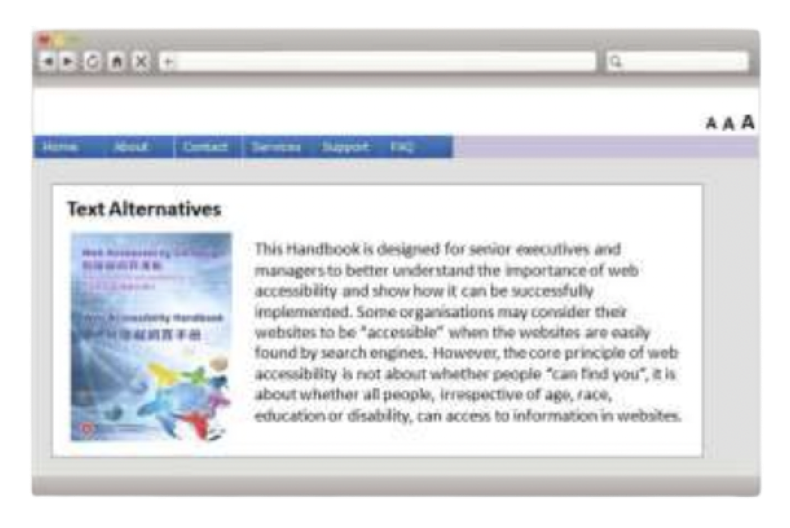
Screen readers are unable to read images without meaningful text descriptions.
After Rectification
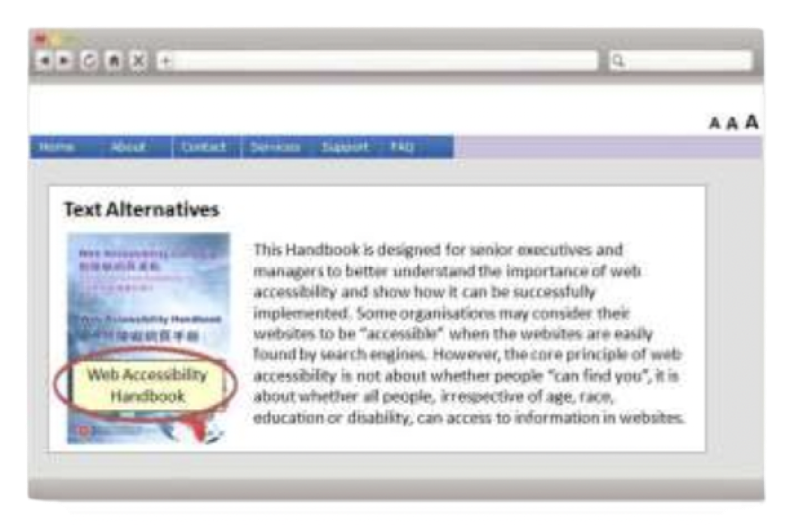
For all images, a text description that can be read by the screen reader should be included. The text description should enable the person reading the webpage to know what the image is about and what it is supposed to illustrate.
WCAG 2.1 Reference:
https://www.w3.org/WAI/WCAG21/Understanding/non-text-content
8.2 WCAG 2.1 Success Criterion 1.2.1 − Audio-only and Videoonly (Prerecorded)
Make prerecorded audio or video accessible by providing alternatives that present essentially the same information to people who cannot access the original piece. For example, visually impaired persons cannot access video and need a way to get this information.
Before Rectification
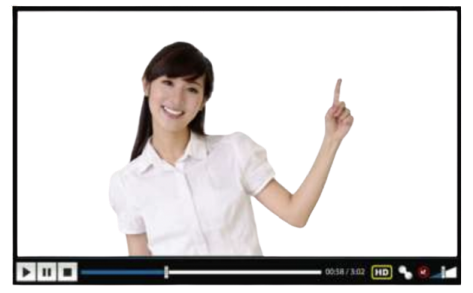
The example shows a video on its own. This will not be accessible for visually impaired persons.
After Rectification
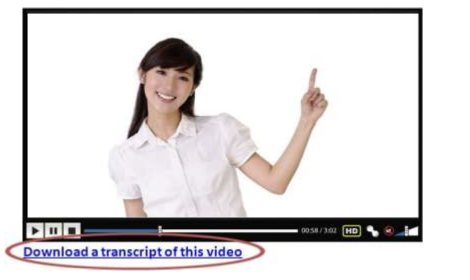
The video has included an option to download a transcript of the video that visually impaired persons will be able to listen to using screen readers.
WCAG 2.1 Reference:
https://www.w3.org/WAI/WCAG21/Understanding/audio-only-and-videoonly-prerecorded
8.3 WCAG 2.1 Success Criterion 1.2.2 − Captions (Prerecorded)
Provide captions for audio tracks so that they are accessible by persons with hearing impairments. Captions not only present the content of a conversation but also important cues and surrounding noises.
Before Rectification
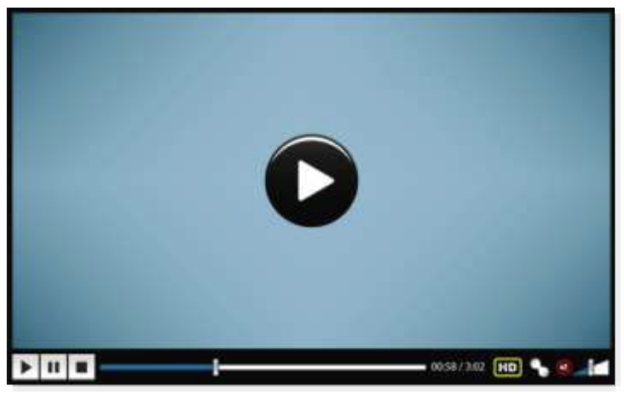
When an audio is embedded in a webpage, the audio is only usable by people who can hear.
After Rectification
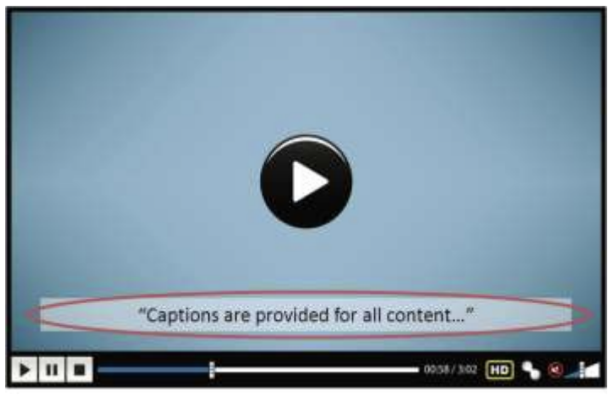
Text captions as shown in the example above should be provided so that a person with hearing difficulties can still access the content of the audio.
WCAG 2.1 Reference:
https://www.w3.org/WAI/WCAG21/Understanding/captions-prerecorded
8.4 WCAG 2.1 Success Criterion 1.2.3 − Audio Description or Media Alternative (Prerecorded)
When a video with audio is uploaded onto a website, a visually impaired person will be able to hear the audio but will not be able to see the picture. As a result he/she will only have access to part of the information. Websites should either provide additional audio that explains what is happening in the picture or provide a text transcript that explains both the audio and what is taking place in the picture.
Before Rectification

With video as shown in the example above, a visually impaired person will be able to hear the audio but will not be able to see the picture. He/She needs some other ways to know that there is a picture of a person on this screen.
After Rectification
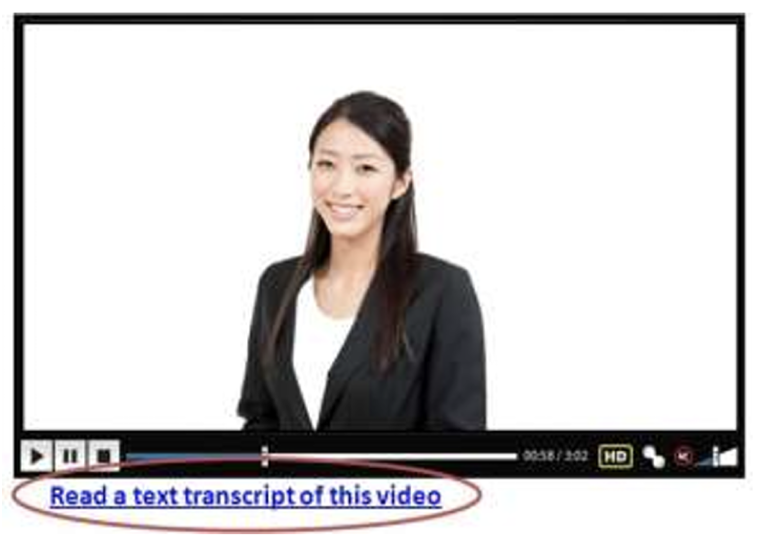
A simple solution to this is to provide a text version that includes dialogue and also explains what is appearing on the screen.
WCAG 2.1 Reference:
https://www.w3.org/WAI/WCAG21/Understanding/audio-description-ormedia-alternative-prerecorded
8.5 WCAG 2.1 Success Criterion 1.3.1 − Info and Relationships
Users who are not disabled can view the layout of a webpage and quickly determine its structure and hierarchy. Persons with visual impairments cannot see this layout. The website needs to provide appropriate markup to illustrate this structure to screen readers so that it is accessible to persons with visual impairments. The links should be categorized into different groups so that screen readers are able to determine their relationship.
Before Rectification
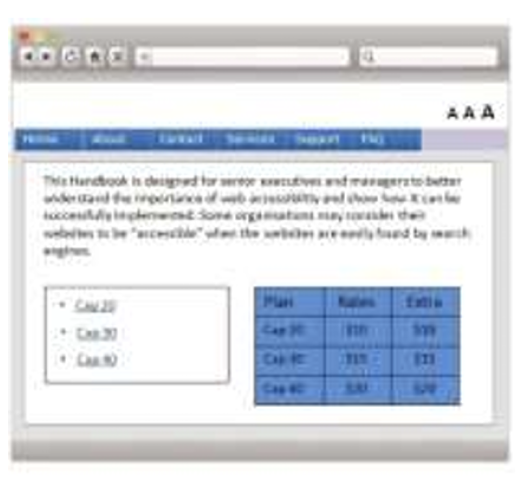
In this example, there are no headings for the content, links and table columns. This is an example of poor structure and relationships as someone using screen readers will not be able to get a good overview of the content.
After Rectification
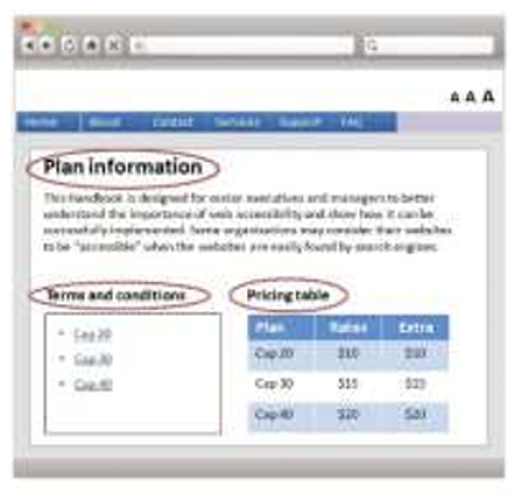
By adding headings and structure to the webpage, persons with visual impairments will be able to get a good overview of the content through the headings for each of the sections and be able to understand the relationships between the content.
WCAG 2.1 Reference: https://www.w3.org/WAI/WCAG21/Understanding/info-and-relationships
8.6 WCAG 2.1 Success Criterion 1.3.2 − Meaningful Sequence
If the content needs to be read in a certain order to make sense, ensure the webpage is written/coded in a way which indicates this order.
Before Rectification
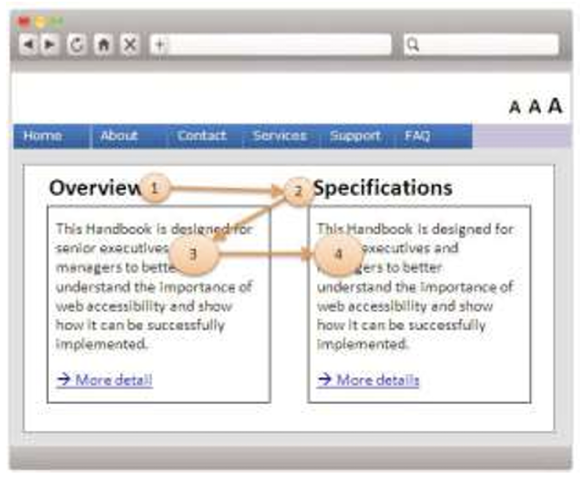
In this example, the webpage has been built in such a way that the screen readers will read the two headings first and then the content.
After Rectification
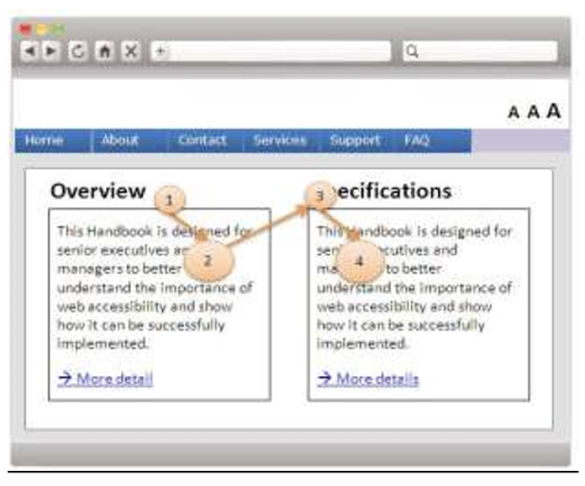
If the webpage is correctly coded, the reading order will be more logical. In this case each piece of content follows its respective heading.
WCAG 2.1 Reference:
https://www.w3.org/WAI/WCAG21/Understanding/meaningful-sequence
8.7 WCAG 2.1 Success Criterion 1.3.3 – Sensory Characteristics
Do not rely solely on sound, shape, size or visual location to provide instructions for understanding content. For example, if instructions say “to submit, click the button to the right”, a visually impaired person will not know where that button is.
Before Rectification
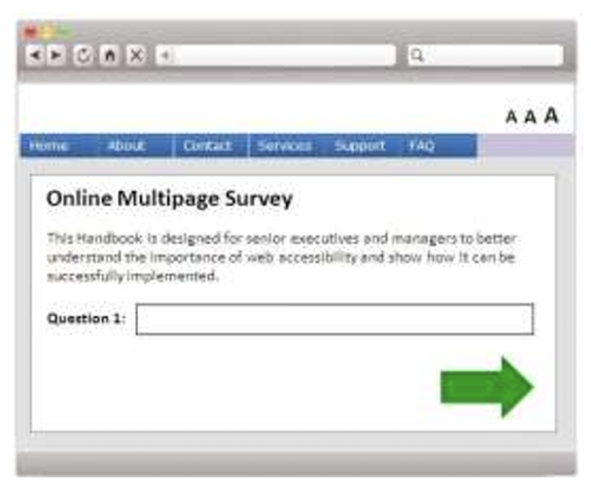
In the example above, it is only clear to a person who can see the webpage that he/she needs to click the green arrow. This will not be clear to a visually impaired person.
After Rectification
The correct way to do this is to label the button and ensure clear instructions are in place to tell people which button to use and how to use it.
WCAG 2.1 Reference:
https://www.w3.org/WAI/WCAG21/Understanding/sensory-characteristics
8.8 WCAG 2.1 Success Criterion 1.4.1 − Use of Colour
Do not rely solely on colours to convey information. It is impossible to be sure that everybody perceives colours in the same way (for example the visually impaired or those who are colour blind), and what may seem obvious to one person may be missed by another.
Before Rectification
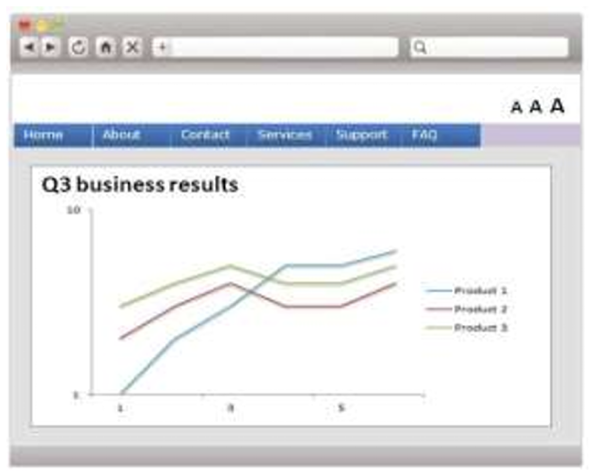
In the example above, the three lines are of different colours, however, a colour blind or visually impaired person may not be able to detect this colour difference.
After Rectification
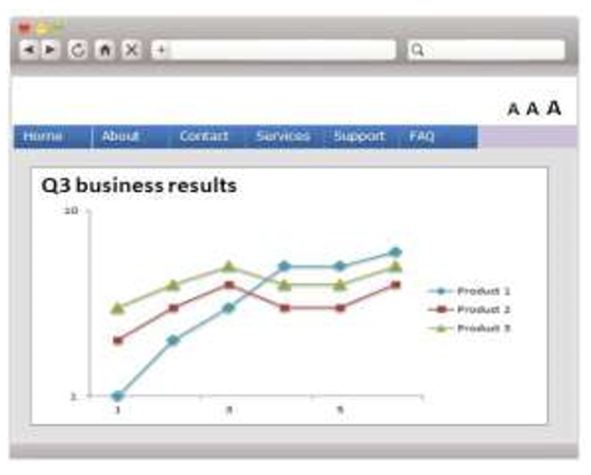
By making the items have different shapes, someone who cannot perceive colours can differentiate between these items through the different shapes in the graph.
WCAG 2.1 Reference:
https://www.w3.org/WAI/WCAG21/Understanding/use-of-color
8.9 WCAG 2.1 Success Criterion 1.4.2 − Audio Control
Audio that plays automatically on a webpage is very distracting to persons with disabilities using screen readers. Either ensure there is no background audio unless specifically selected by a user or allow the user to easily turn off the audio.
Before Rectification
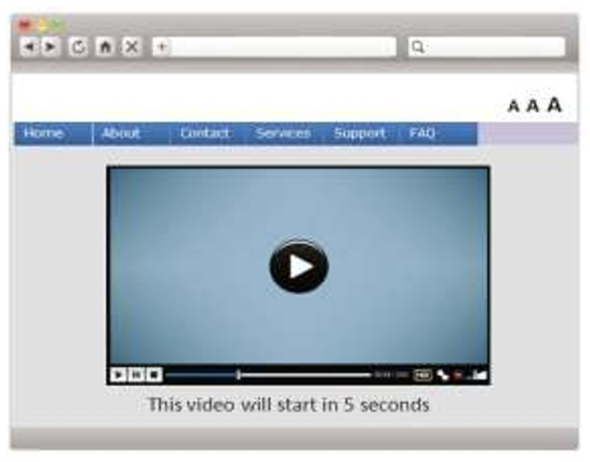
In the example above, the video will begin playing automatically in five seconds. This is very common on news websites. Ideally the video should only play when the user initiates it. If that is not possible, a link can be added to turn off the audio.
After Rectification
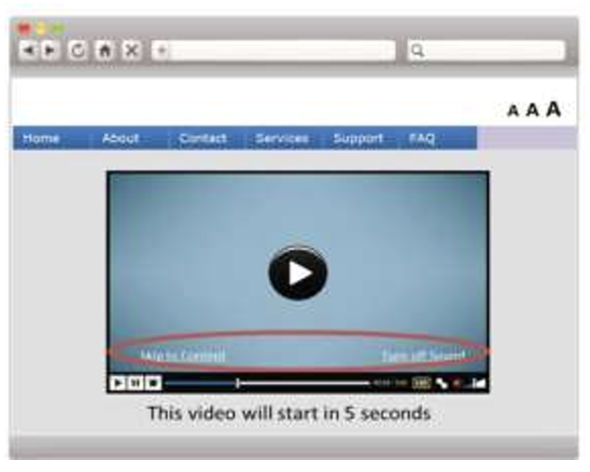
In this example, we have included a link to turn off the audio at the beginning of the webpage so users will find it easily when they first come to this webpage. They can then turn off the audio if they choose.
WCAG 2.1 Reference:
https://www.w3.org/WAI/WCAG21/Understanding/audio-control
8.10 WCAG 2.1 Success Criterion 2.1.1 − Keyboard
Ensure all content and functions can be accessed via a keyboard. For example, ensure content and functionalities are accessible through the Tab key or the Enter key.
Before Rectification
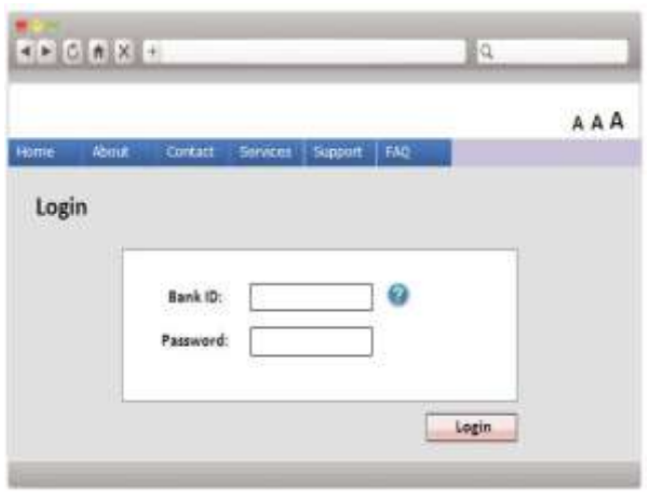
In the webpage above, people using a keyboard may not be able to navigate to the help function provided.

This extract from the HTML code shows that it can only be accessed with a mouse.
After Rectification

The code needs to be changed to allow users to access all content and functions with a keyboard.
WCAG 2.1 Reference:
https://www.w3.org/WAI/WCAG21/Understanding/keyboard
8.11 WCAG 2.1 Success Criterion 2.1.2 − No Keyboard Trap
Often people with disabilities can only use a keyboard to control a webpage. Ensure the keyboard can be used to control or dismiss dialogue boxes, popups or other windows.
Before Rectification
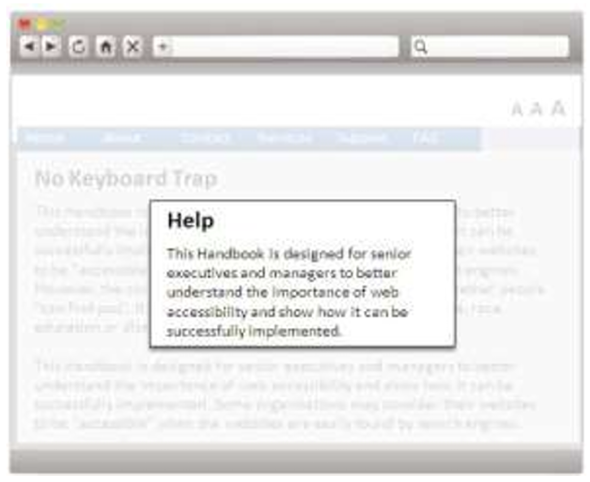
Websites often have popup windows, such as for help content as shown in this example. A keyboard user may become trapped in the popup without an easy way to return to the main content.
After Rectification
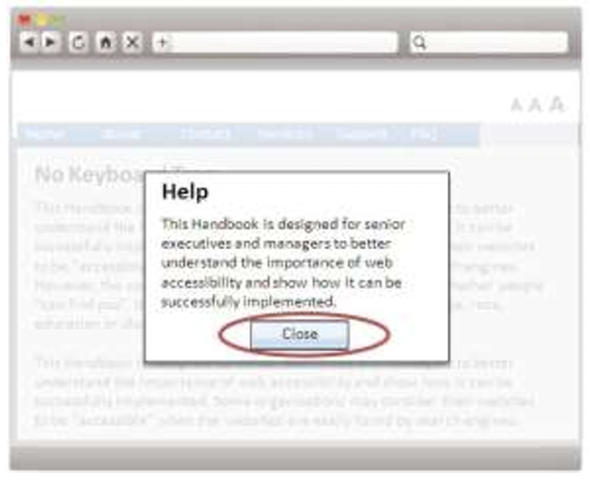
By incorporating a Close button in the popup window, users can escape the trap of that window by using the Tab key to move to the Close button and press Enter.
WCAG 2.1 Reference:
https://www.w3.org/WAI/WCAG21/Understanding/no-keyboard-trap
8.12 WCAG 2.1 Success Criterion 2.1.4 − Character Key Shortcuts
For keyboard shortcuts using letter, punctuation, number or symbol character, at least one of the following is true:
Turn off: User can turn off the shortcut;
Remap: User can remap the shortcut to include one or more non-printable keyboard characters (e.g. Ctrl, Alt); or
Active only on focus: The shortcut is active only on focus.
Before Rectification
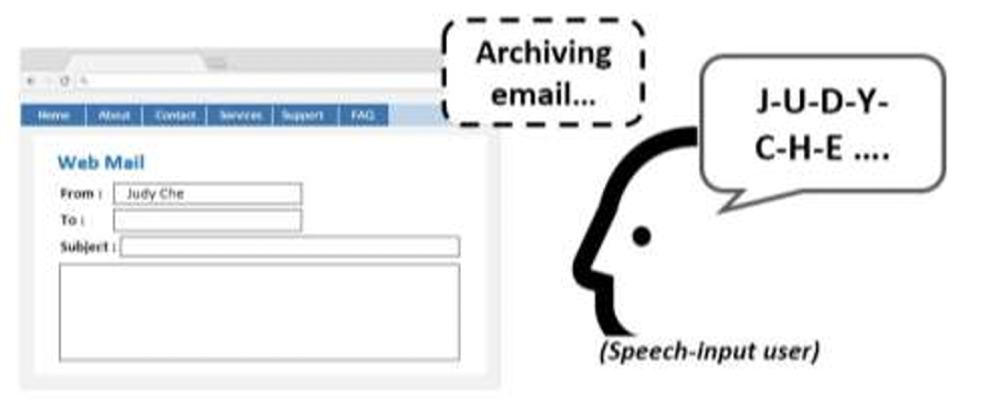
The character “e” is used as a shortcut key for archiving the email. When a speech input user reads “e” as one of the input texts, the archive function is automatically initiated.
After Rectification
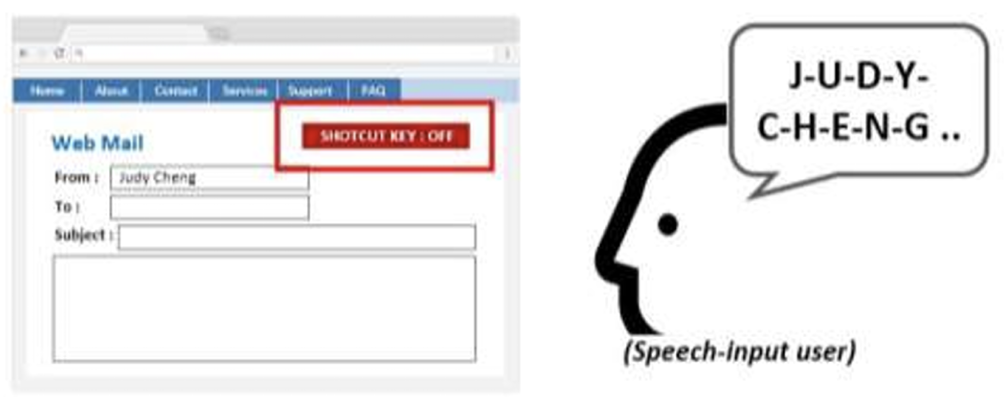
A function is added for users to turn off the shortcut key feature. The speechinput user is now able to input the text without invoking the shortcut key function.
WCAG 2.1 Reference:
https://www.w3.org/WAI/WCAG21/Understanding/character-key-shortcuts
8.13 WCAG 2.1 Success Criterion 2.2.1 − Timing Adjustable
Ideally ensure processes on a website are not time dependent. If they are, ensure persons with disabilities can either adjust or stop the time limit so they can have enough time to complete their task.
Before Rectification
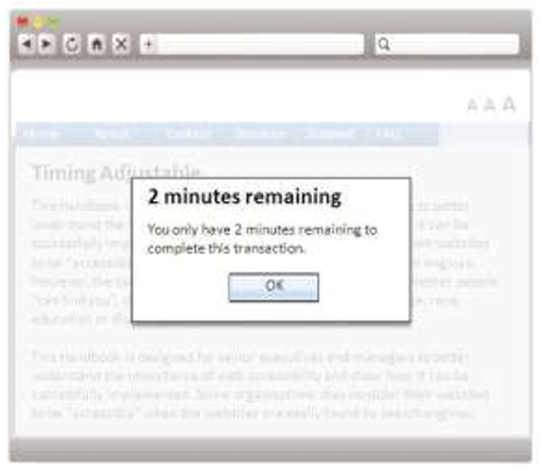
This example warns a person that time is about to expire.
After Rectification
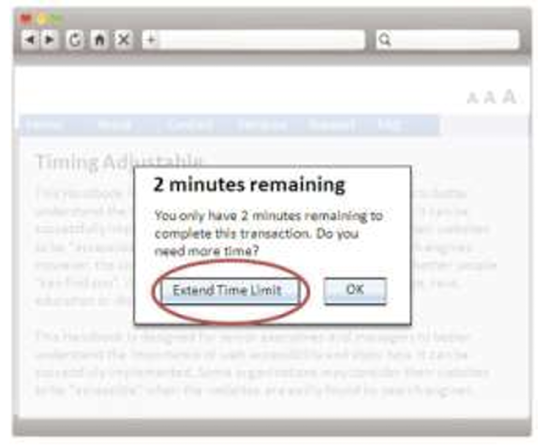
A better approach is to allow the person to extend the time.
WCAG 2.1 Reference:
https://www.w3.org/WAI/WCAG21/Understanding/timing-adjustable
8.14 WCAG 2.1 Success Criterion 2.2.2 − Pause, Stop, Hide
For content that moves automatically for more than five seconds or is updated automatically, there needs to be a way to stop this movement and stop the webpage from updating, blinking or scrolling.
Before Rectification
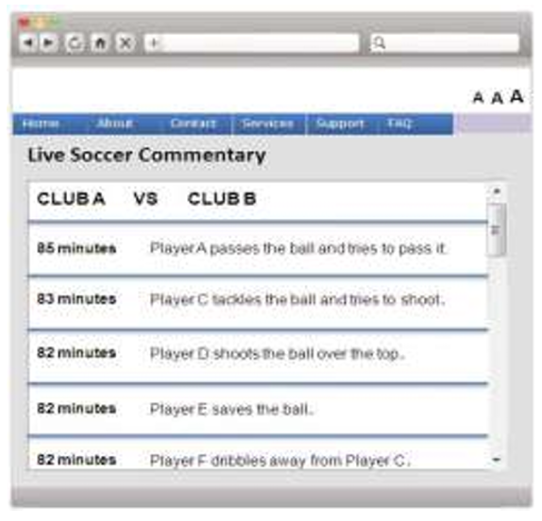
In the example above, the webpage is designed to update automatically as content changes, which can be very frustrating for people using screen readers.
After Rectification
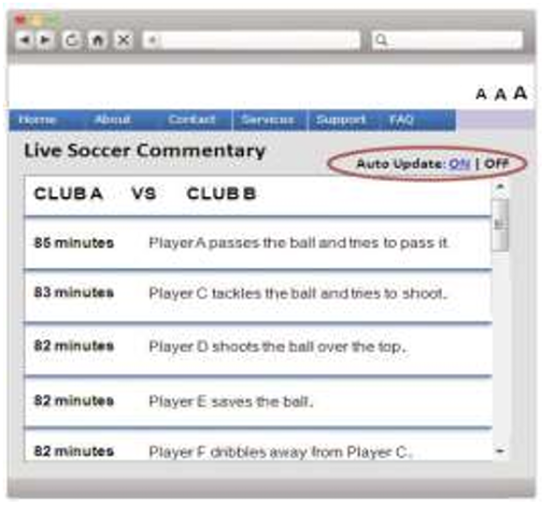
By providing a function to turn off the auto updating, the webpage will be much easier for persons with disabilities to use.
WCAG 2.1 Reference:
https://www.w3.org/WAI/WCAG21/Understanding/pause-stop-hide
8.15 WCAG 2.1 Success Criterion 2.3.1 − Three Flashes or Below Threshold
Ensure all flashing items are dimmed, and cover only a small area of the screen or the flash rate is three times per second or less. Otherwise, this may cause problems for people who suffer from epilepsy.
Before Rectification
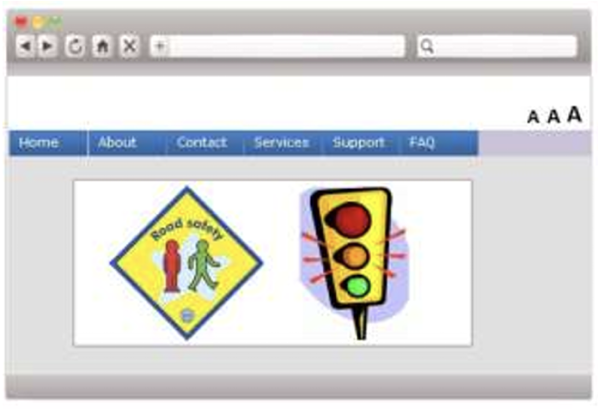
In this example, the traffic light image is flashing too fast, and is too bright and covers a large part of the screen. This content can cause seizures in people prone to this problem.
After Rectification
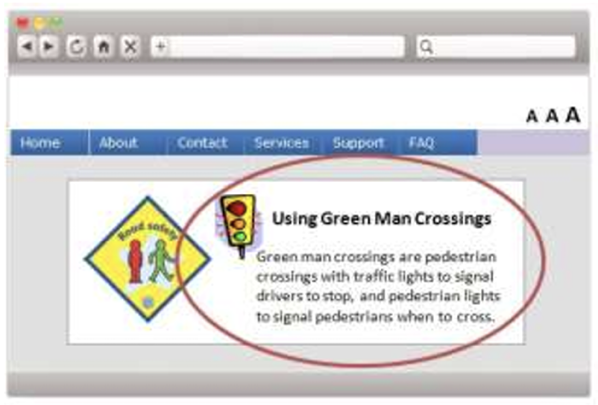
It is better to replace flashing content with static content, or ensure the object flashes in only a small portion of the screen or the flash rate is less than three times a second.
WCAG 2.1 Reference:
https://www.w3.org/WAI/WCAG21/Understanding/three-flashes-orbelow-threshold
8.16 WCAG 2.1 Success Criterion 2.4.1 − Bypass Blocks
Ensure users have the ability to skip past repetitive blocks of content (e.g. the navigation at the top of the webpage). Add a link that goes directly to the main content at the top of each webpage.
Before Rectification
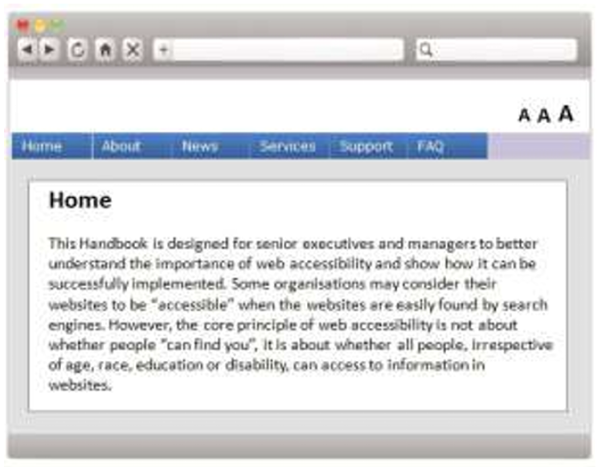
With such a webpage, people using screen readers will need to read all the navigation information before getting to the target content. People who navigate using only a keyboard will require many keystrokes before getting to the target content.
After Rectification
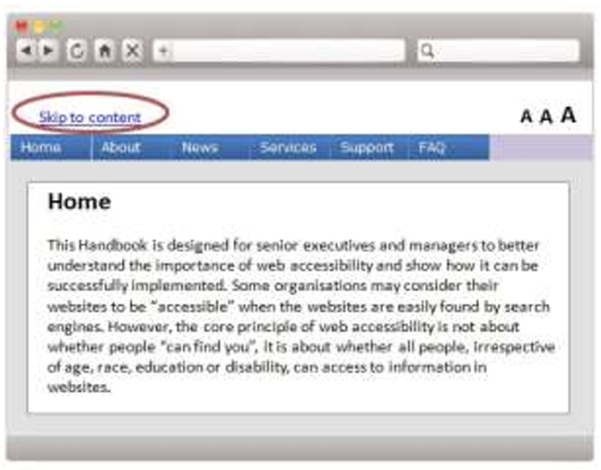
By adding a “Skip to content” link at the top of each webpage, persons with disabilities will be able to click that link and bypass the navigation information to get to the main content.
WCAG 2.1 Reference:
https://www.w3.org/WAI/WCAG21/Understanding/bypass-blocks
8.17 WCAG 2.1 Success Criterion 2.4.2 − Page Titled
Give webpages a title that accurately describes what the content is about. This will help persons with disabilities differentiate the webpages in their browser history.
Before Rectification
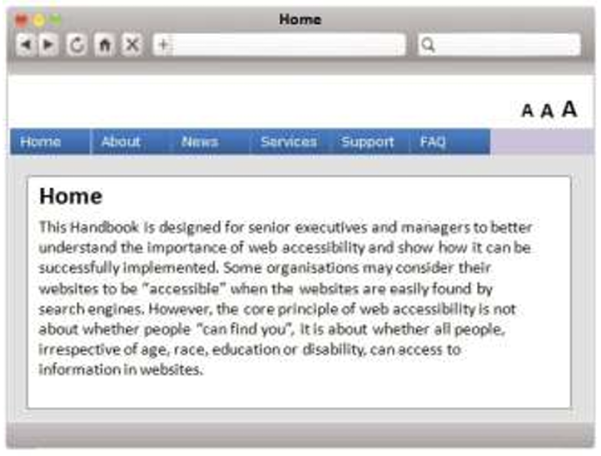
It is quite common to see webpages with inaccurate titles such as this one where the webpage is simply named “Home”. This can easily be confused with other Home page.
After Rectification
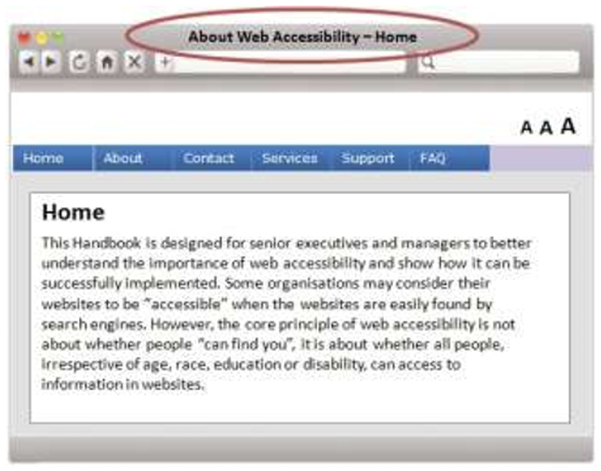
A proper title such as this one will accurately describe what this webpage is about.
WCAG 2.1 Reference:
https://www.w3.org/WAI/WCAG21/Understanding/page-titled
8.18 WCAG 2.1 Success Criterion 2.4.3 − Focus Order
When writing the HTML code for a webpage, make sure the content is coded in a logical order. It will then be communicated in a logical manner when read by screen readers. This is particularly important for web forms.
Before Rectification
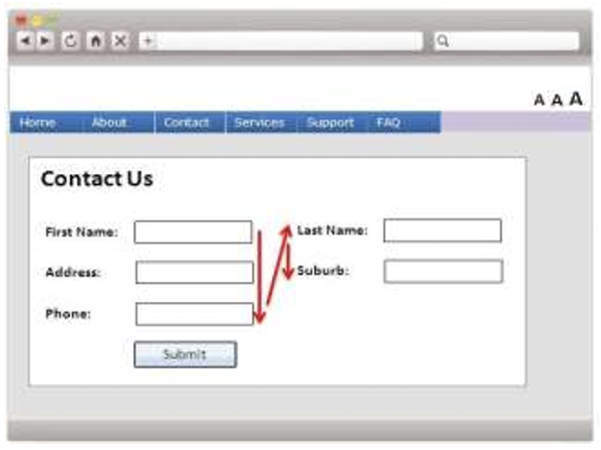
In this example, the form has been coded so that the focus order goes from First Name, to Address, to Phone, then to the Submit button. This is not intuitive to a user.
After Rectification
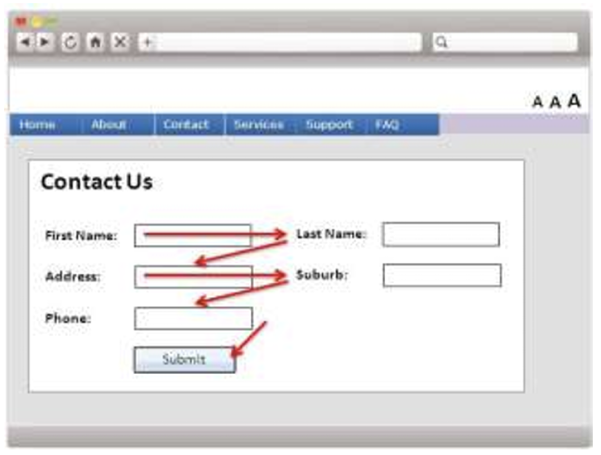
With proper coding, the focus order of the form can move in a much more logical manner.
WCAG 2.1 Reference:
https://www.w3.org/WAI/WCAG21/Understanding/focus-order
8.19 WCAG 2.1 Success Criterion 2.4.4 − Link Purpose (In Context)
Write descriptive link text to ensure the purpose of each link can be understood by the text alone, or by the link text and the context.
Before Rectification
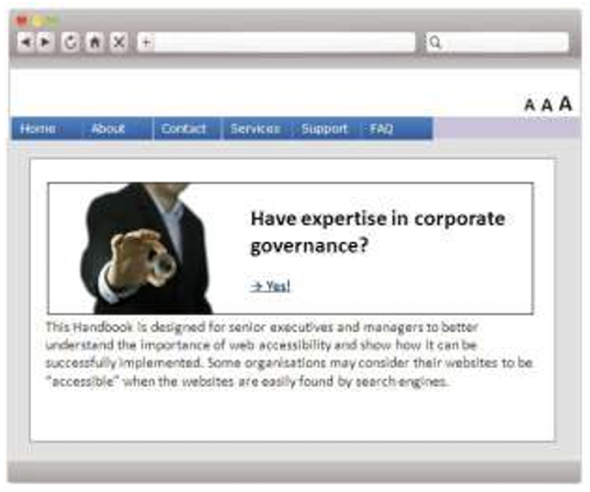
In the example above, the link “Yes” is ambiguous and does not really convey much meaning.
After Rectification
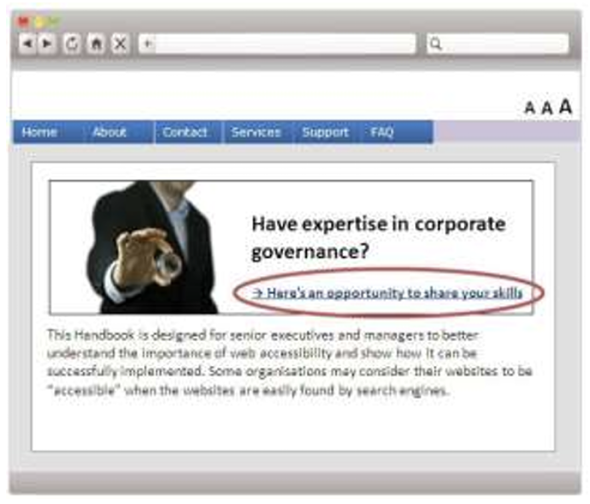
Link labels should be more descriptive and self-explanatory as shown in the rectified version above.
WCAG 2.1 Reference:
https://www.w3.org/WAI/WCAG21/Understanding/link-purpose-in-context
8.20 WCAG 2.1 Success Criterion 3.1.1 − Language of Page
Ensure the primary language of a webpage is defined within the HTML code. The correct speaking language will be loaded by screen readers to read the words in the webpage.
The example above is written in Chinese. When using screen readers, it is important for the tool to know the language of the webpage.
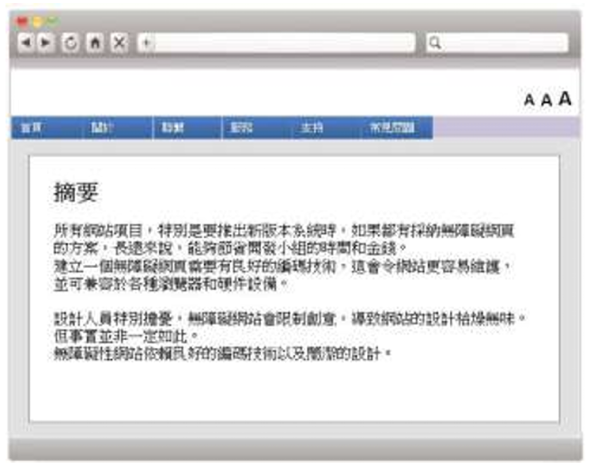
Before Rectification

After Rectification

In order for the screen reader to work correctly, the above language specification must be included in the HTML code.
WCAG 2.1 Reference:
https://www.w3.org/WAI/WCAG21/Understanding/language-of-page
8.21 WCAG 2.1 Success Criterion 3.2.1 − On Focus
When an item on a webpage receives focus, such as by using the Tab key in the keyboard, ensure it does not change the context. For example, by displaying a dialogue box when a person tabs to a field.
Before Rectification
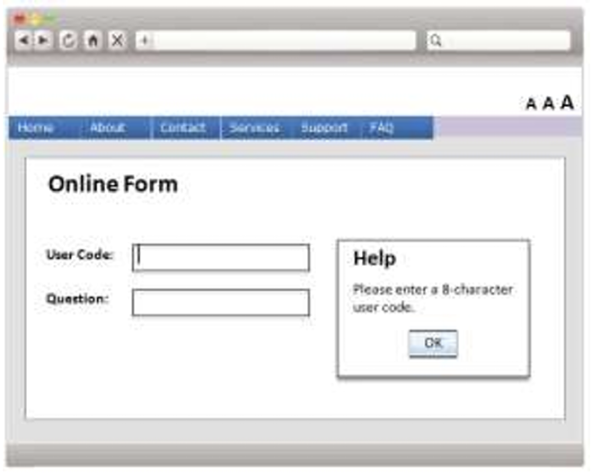
In this example, a field receives focus, and a help dialogue box describing the field and providing options opens. As a keyboard user tabs through the webpage, the dialogue opens, moving the keyboard focus away from the control every time the user attempts to tab past the field.
After Rectification
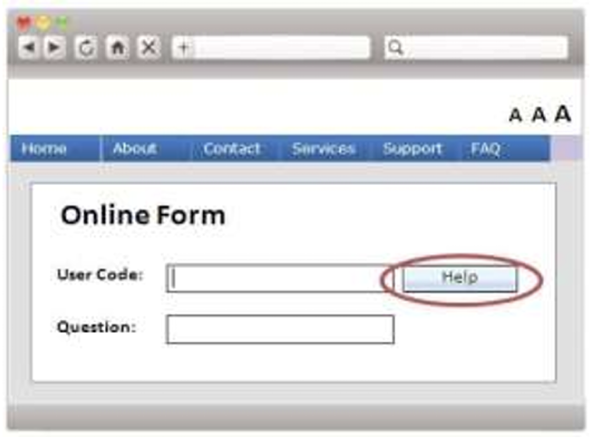
Instead, the webpage should allow the user to activate “Help” only at their choice rather than forcing them to read “Help” with each tabbed field.
WCAG 2.1 Reference:
https://www.w3.org/WAI/WCAG21/Understanding/on-focus
8.22 WCAG 2.1 Success Criterion 3.2.2 − On Input
Changing a setting on a webpage should not cause a change of context such as opening a popup window or refreshing content. In addition, users should not be taken away from a webpage when changing something without warning.
Before Rectification
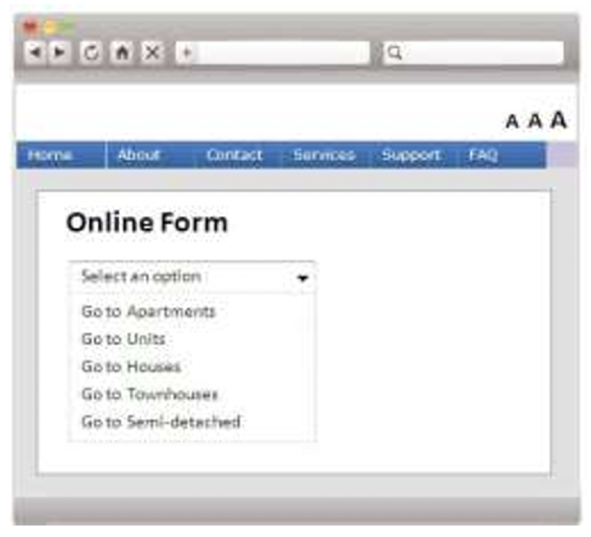
It is common to see drop down menus on webpages that, when changed, cause the form to be automatically submitted. This can make the website very difficult to use for persons with disabilities.
After Rectification
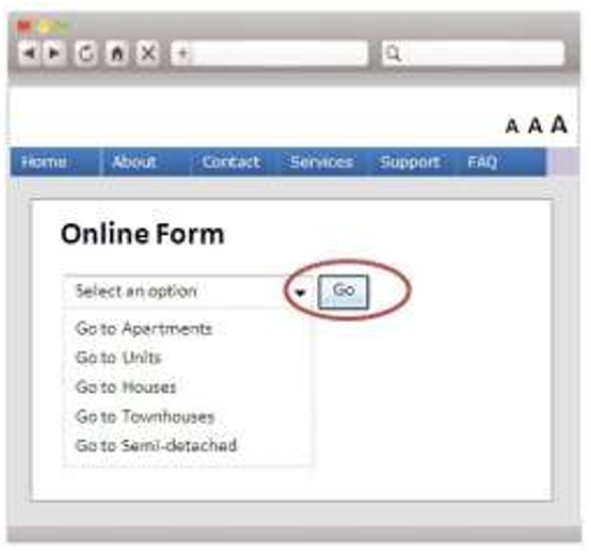
This option is much better as it gives the user control over when to submit the form.
WCAG 2.1 Reference:
https://www.w3.org/WAI/WCAG21/Understanding/on-input
8.23 WCAG 2.1 Success Criterion 3.3.1 − Error Identification
If a user makes a mistake, use text to show him/her where and what he/she has done wrong, and how he/she can fix it.
Before Rectification
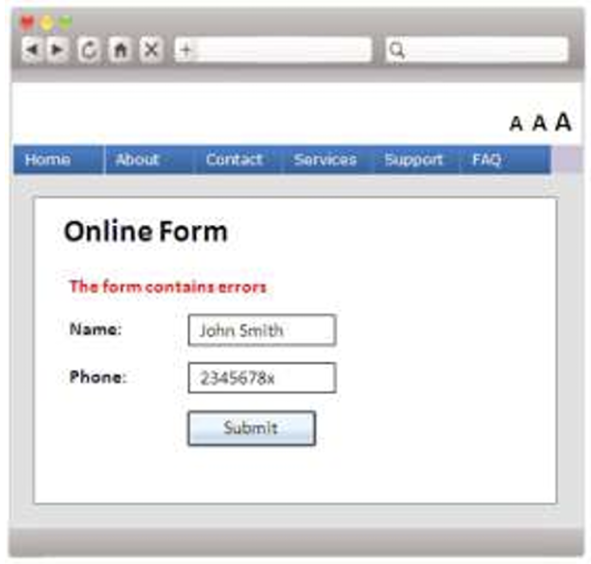
In the screen on the above, an error has been identified without any information on where the error is and what needs to be fixed.
After Rectification
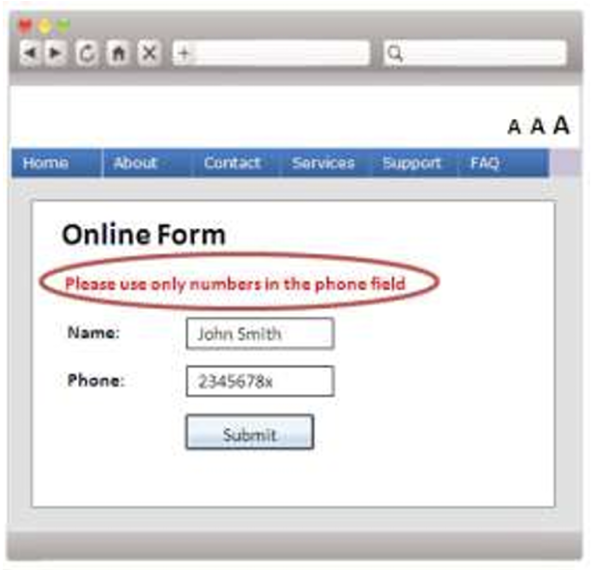
This is made accessible by telling the user where the error has occurred and what he/she needs to do to fix the error.
WCAG 2.1 Reference:
https://www.w3.org/WAI/WCAG21/Understanding/error-identification
8.24 WCAG 2.1 Success Criterion 3.3.2 − Labels or Instructions
To help persons with disabilities avoid making mistakes, it is good to provide simple instructions and cues for entering information into forms. For example, use labels, instructions and examples.
Before Rectification
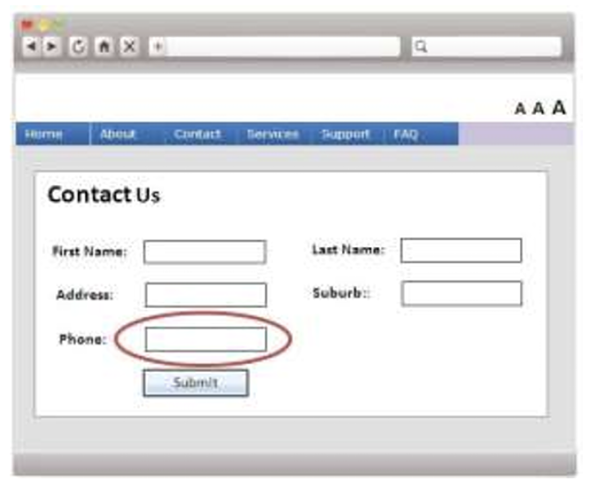
The above screen is a typical “Contact Us” form. However, there is no information on what format to use to enter the phone number.
After Rectification
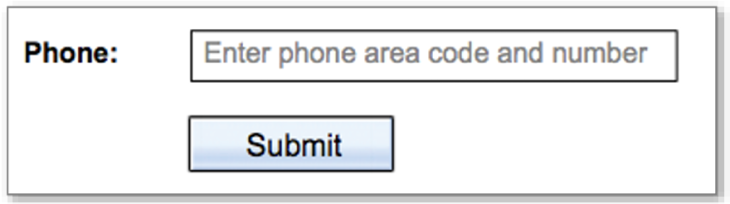
By adding default instructions to the fields, a visually impaired person can complete each field easily.
WCAG 2.1 Reference:
https://www.w3.org/WAI/WCAG21/Understanding/labels-or-instructions
8.25 WCAG 2.1 Success Criterion 4.1.1 − Parsing
Ensure the webpage is written/coded correctly. For example, implement complete start and end tags for all elements. This ensures that the screen reader accurately reads the webpage.
Before Rectification
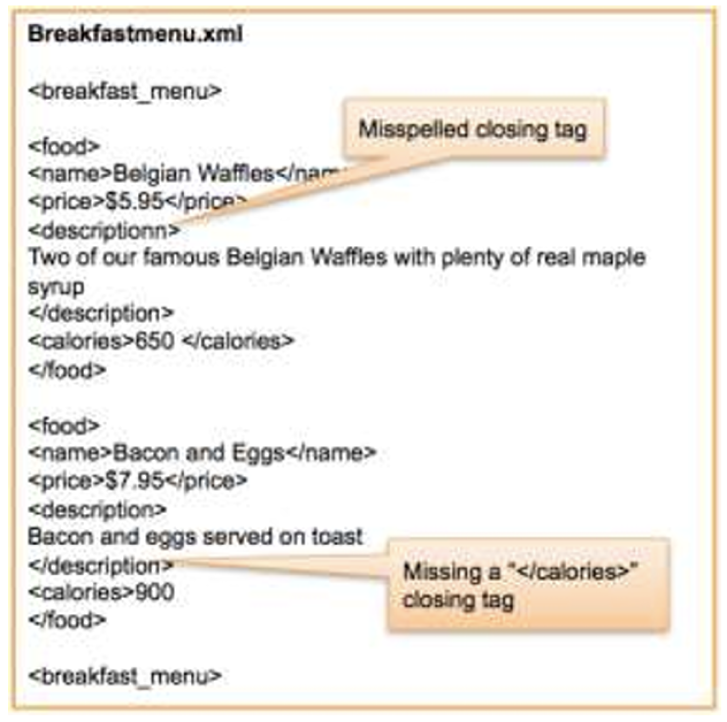
After Rectification
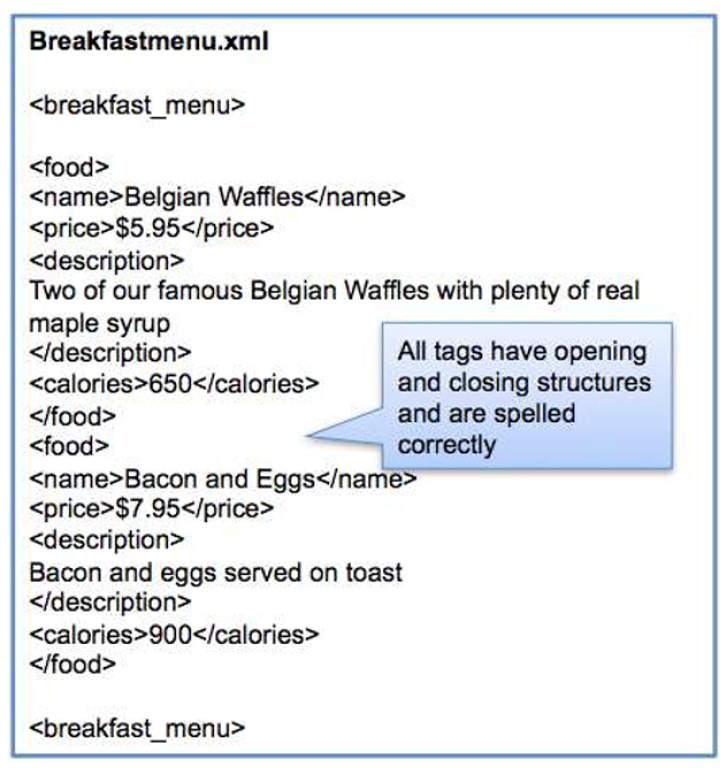
WCAG 2.1 Reference:
https://www.w3.org/WAI/WCAG21/Understanding/parsing
8.26 WCAG 2.1 Success Criterion 4.1.2 − Name, Role, Value
Ensure all elements on a webpage have a “Name”, “Value” and “Role” assigned to them. This can generally be achieved by writing correct HTML coding according to relevant standards. If this is not done correctly, screen readers will read the wrong role for an element. In the example below, the screen readers will consider the button as an image. This makes the website confusing for visually impaired persons.
Before Rectification

With the code snippet above, an image is used for a button. In this case, a wrong role is used for an element and the element is missing a name.
After Rectification

With proper HTML coding, the role is used, and the input element is of the button type. In addition, a unique name has been given to the element. In this way, the screen readers will communicate to the user that the element is in fact a button and this in turn makes it easier for the user to know he/she may need to click that button.
WCAG 2.1 Reference:
https://www.w3.org/WAI/WCAG21/Understanding/name-role-value
8.27 WCAG 2.1 Success Criterion 2.5.1 – Pointer Gestures
Complex gestures, such as swiping, dragging a slider or two-finger pinching for zooming, can be performed through simpler actions like taps or long presses.
Before Rectification
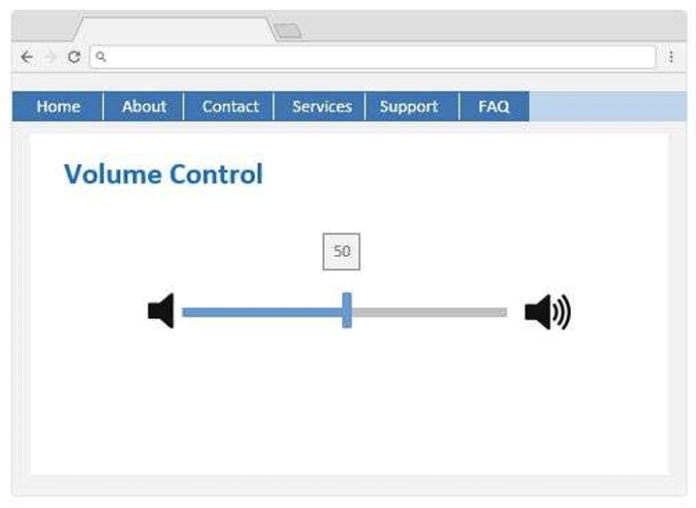
The dragging of a slider requires a precise path of the user’s pointer movement to control the volume.
After Rectification
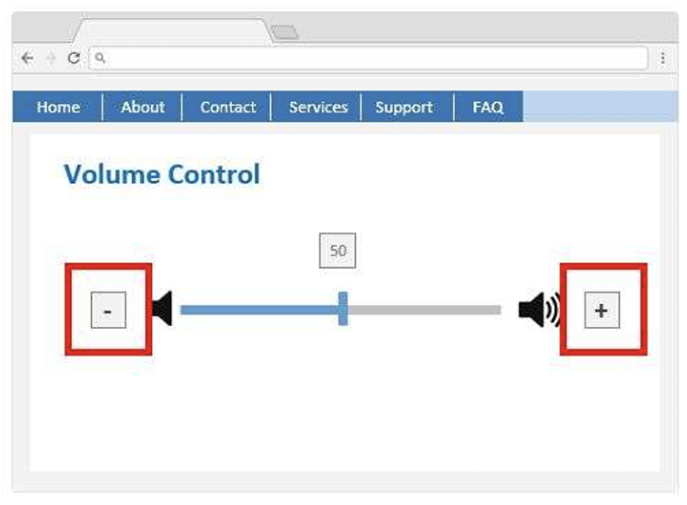
Buttons are added as an alternative way for users to adjust the volume with simple clicks.
WCAG 2.1 Reference:
https://www.w3.org/WAI/WCAG21/Understanding/pointer-gestures.html
8.28 WCAG 2.1 Success Criterion 2.5.2 – Pointer Cancellation
Functions are completed by the up-event (e.g. release the mouse button or remove the finger from the screen) and either one of the following mechanisms is available:
To abort the function before completion; or
To undo the function after completion.
There is exemption when the down-event is essential such as in the piano keyboard emulation program.
Before Rectification
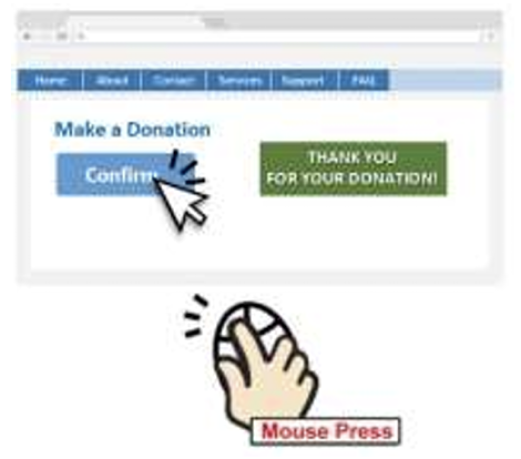
When the user makes a donation by clicking the confirm button, the donation is confirmed before the user releases the mouse button. There is no way for the user to abort the function after he/she has pressed the mouse button.
After Rectification
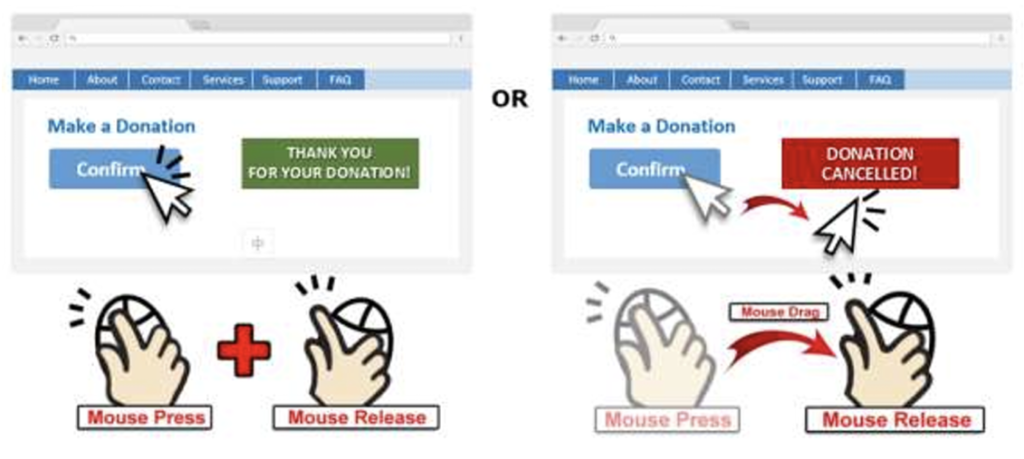
The donation will be confirmed only if the user presses and releases the mouse button at the clickable area. If the user wants to abort the function after pressing the mouse button, he/she can drag the mouse pointer out of the clickable area, then release the mouse button.
WCAG 2.1 Reference:
https://www.w3.org/WAI/WCAG21/Understanding/pointer-cancellation.html
8.29 WCAG 2.1 Success Criterion 2.5.3 – Label in Name
All visible text labels must match their programmatic names to facilitate users using speech-to-text technologies to interact with the content based on an intuitive visual label.
Before Rectification
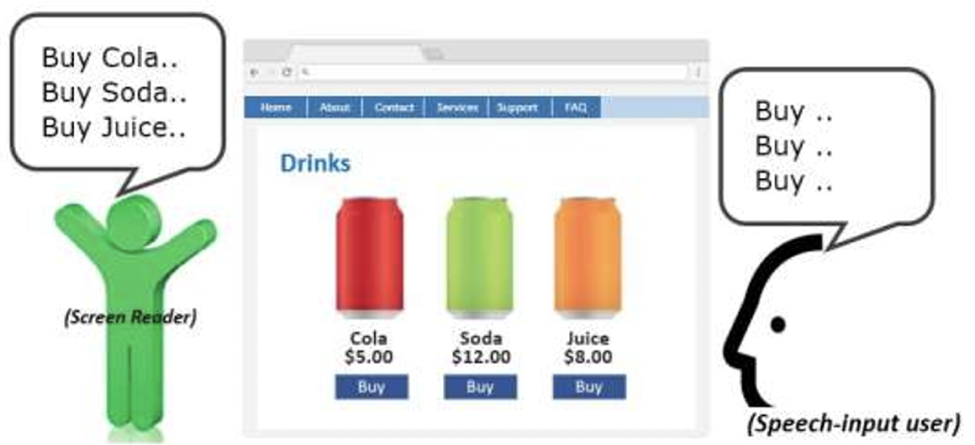
When a speech-input user speaks a command “Click Buy”, the speech input does not activate the button control because the programmatic name that is enabled as a speech-input command does not match with the visible text label.
After Rectification
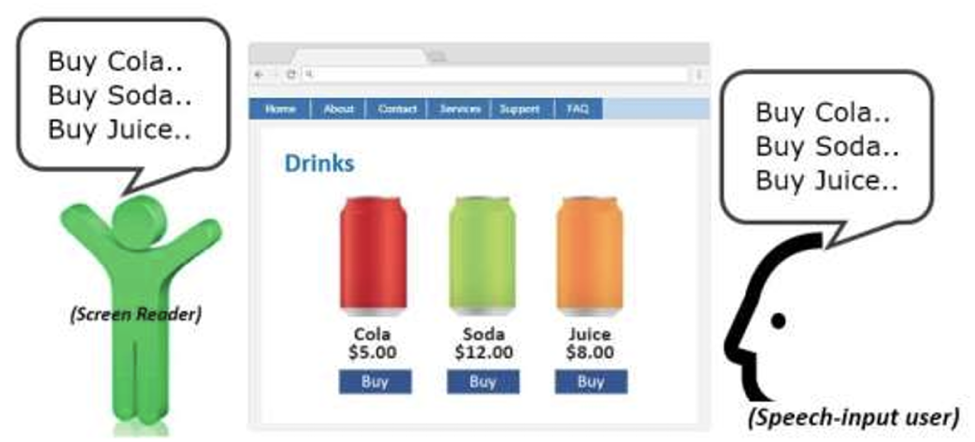
The programmatic names are exactly the same as the visual text labels of the buttons, so that the speech-input user can activate the control by speaking the visual text label.
WCAG 2.1 Reference: https://www.w3.org/WAI/WCAG21/Understanding/label-in-name.html
8.30 WCAG 2.1 Success Criterion 2.5.4 – Motion Actuation
Functions triggered by moving a device (e.g. shaking or tilting) or by gesturing towards the device (e.g. a camera can interpret the gesture and activate a function) should be able to be operated by more conventional user interface components.
Before Rectification
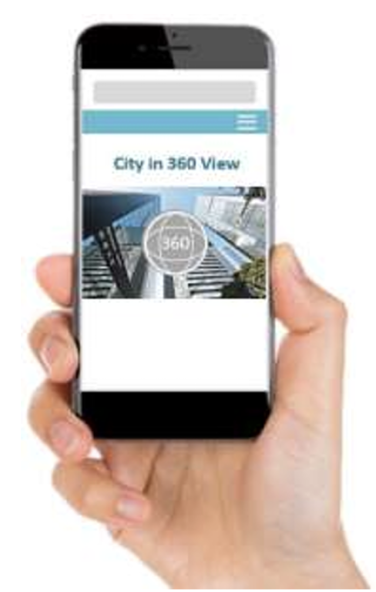
To view a 360-degree photo, users are required to either move the device around to change the view or tap and drag on the photo. Users with mobility difficulties are difficult to perform these actions.
After Rectification
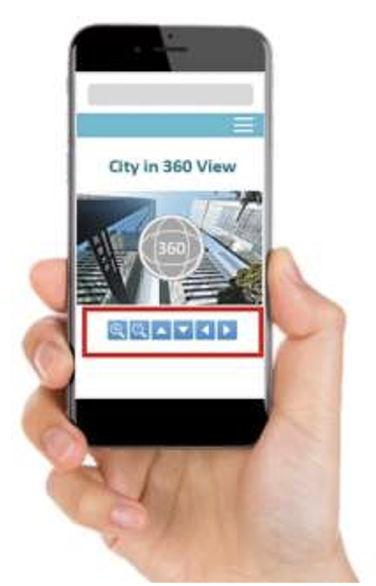
Navigation buttons are added as an alternative for navigation. Users can either move the device around to change the view or click the navigation buttons to perform the same function
WCAG 2.1 Reference:
https://www.w3.org/WAI/WCAG21/Understanding/motion-actuation
9. WCAG 2.1 Success Criteria – Level AA
9.1 WCAG 2.1 Success Criterion 1.2.4 − Captions (Live)
Ensure all audios and videos that are presented “live” have captions.
Before Rectification
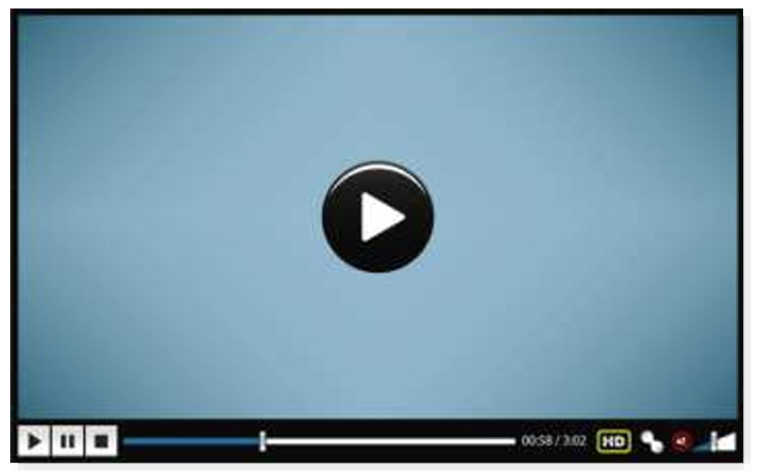
When an audio is embedded in a webpage as shown above, the audio is only usable by people who can hear.
After Rectification
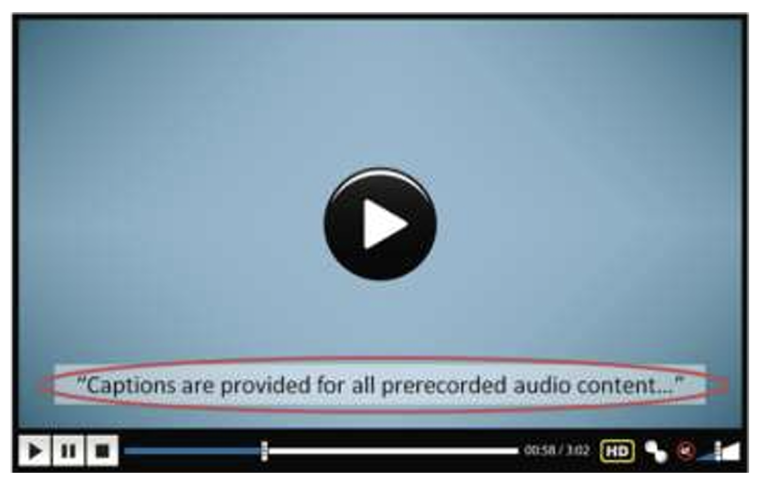
Text captions should be provided so that persons with hearing impairments can still have access to content from the audio as shown in the example above.
WCAG 2.1 Reference:
https://www.w3.org/WAI/WCAG21/Understanding/captions-live
9.2 WCAG 2.1 Success Criterion 1.2.5 − Audio Description (Prerecorded)
Provide a descriptive audio track in addition to the prerecorded video so that visually impaired persons can still use the webpage without the video.
Before Rectification
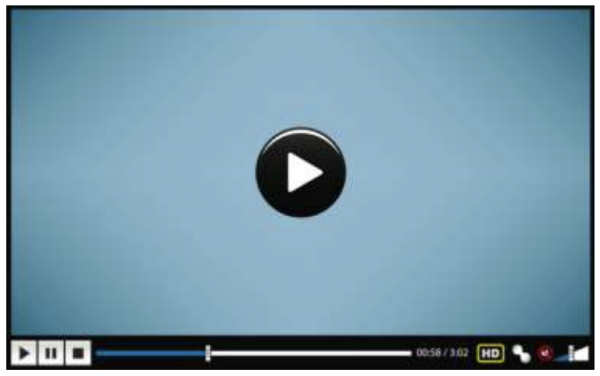
When providing a video for users on a webpage, it is important to make sure that an audio description of this video is also present so people who cannot view the video can still understand the content.
After Rectification
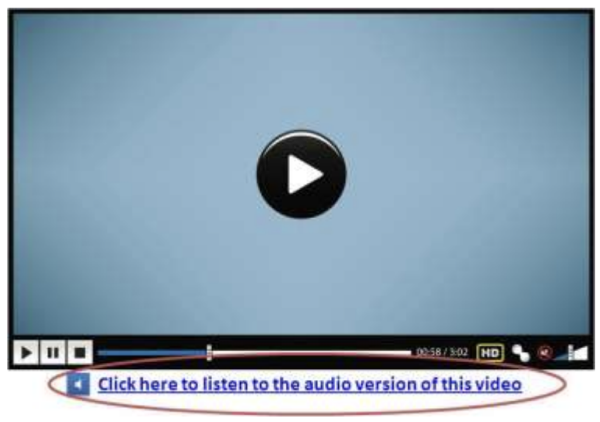
An audio description of the video should be provided so visually impaired persons may listen to the description and understand what the video is about.
WCAG 2.1 Reference:
https://www.w3.org/WAI/WCAG21/Understanding/audio-descriptionprerecorded
9.3 WCAG 2.1 Success Criterion 1.3.4 – Orientation
Unless a specific display orientation is essential, the content should be able to be viewed or operated in either portrait or landscape orientations.
Before Rectification
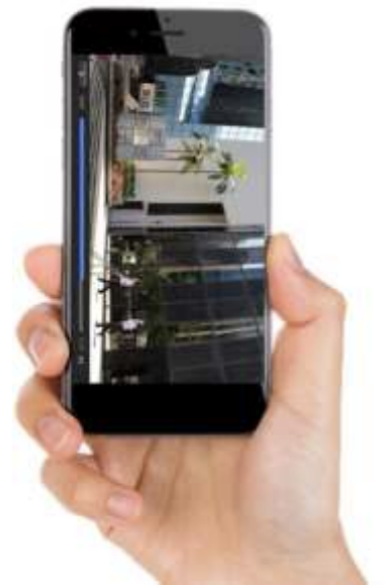
Users are unable to change the orientation of the video clip as the video player restricts its display orientation to landscape.
After Rectification
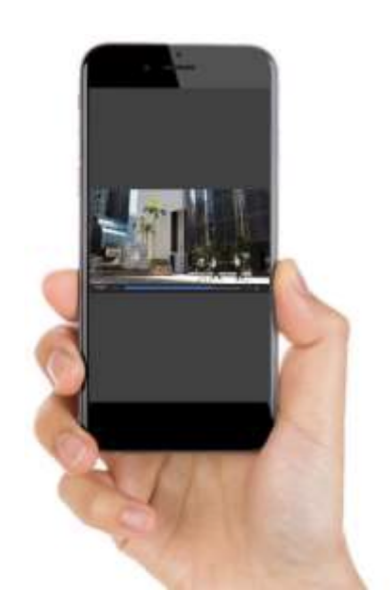
Persons with physical disabilities may mount the device on a wheelchair in a fixed orientation. By not restricting the display orientation, users can view the content in the orientation that suits them best.
WCAG 2.1 Reference:
https://www.w3.org/WAI/WCAG21/Understanding/orientation.html
9.4 WCAG 2.1 Success Criterion 1.3.5 – Identify Input Purpose
Autocomplete attribute techniques should be used for each input field to make form filling easier, especially for people with cognitive disabilities.
Before Rectification
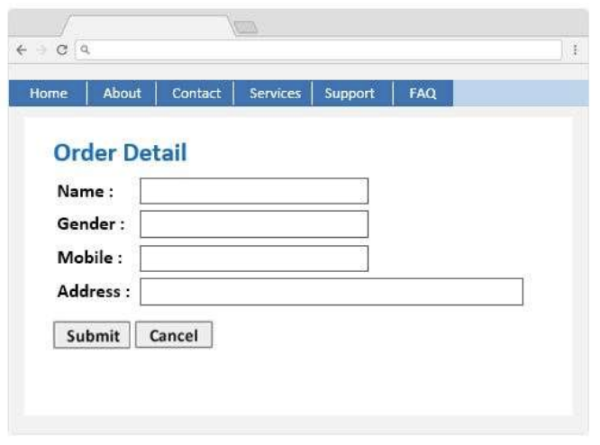
The user is required to input personal information from scratch.
After Rectification
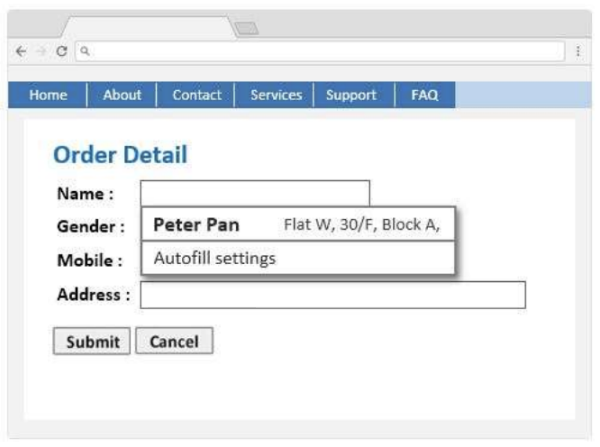
Enabling the autocomplete attribute improves the browser’s ability to pre-populate form fields with user-preferred values. It allows the user to complete the form easily.
WCAG 2.1 Reference:
https://www.w3.org/WAI/WCAG21/Understanding/identify-inputpurpose.html
9.5 WCAG 2.1 Success Criterion 1.4.3 − Contrast (Minimum)
Design text and images so that they have a contrast ratio of at least 4.5:1 between the background and the foreground to make it easy to read.
Before Rectification
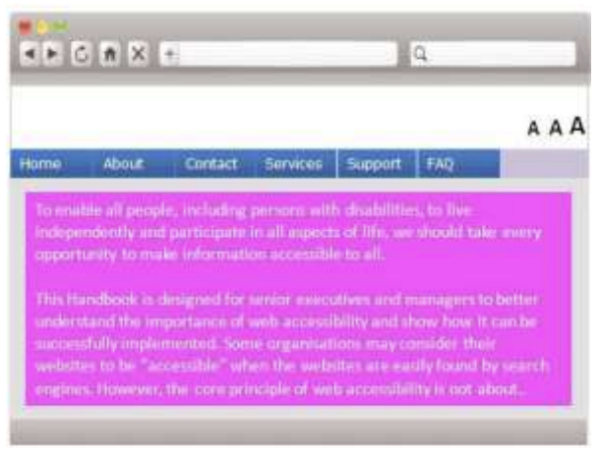
In this example, the white text on the pink background has poor contrast, making it hard to read.
After Rectification
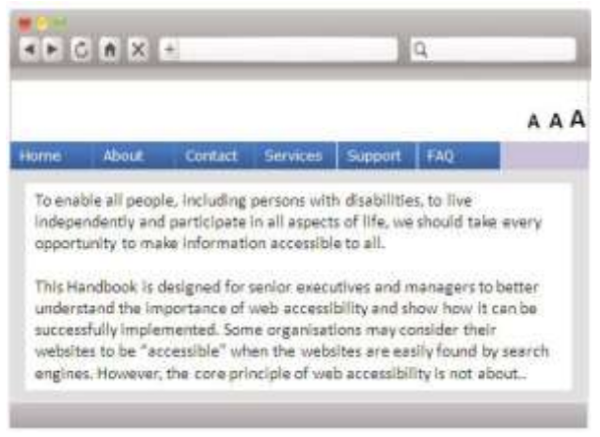
When higher contrast text is used, the text is much easier to read. There are colour contrast checkers available online that can assist web developers to check the contrast of their webpages.
WCAG 2.1 Reference:
https://www.w3.org/WAI/WCAG21/Understanding/contrast-minimum
9.6 WCAG 2.1 Success Criterion 1.4.4 − Resize text
Ensure all text can be resized up to 200% without the loss of content or functionality. In this way, persons with mild visual impairments can read the content without using assistive technologies such as a screen magnifier.
Before Rectification
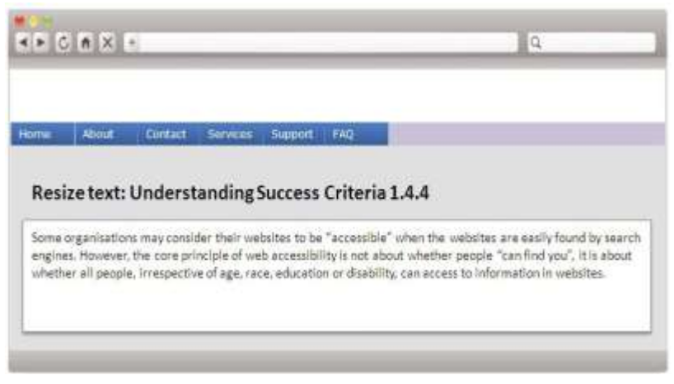
In the screen above, there are no functions to resize the text.
After Rectification
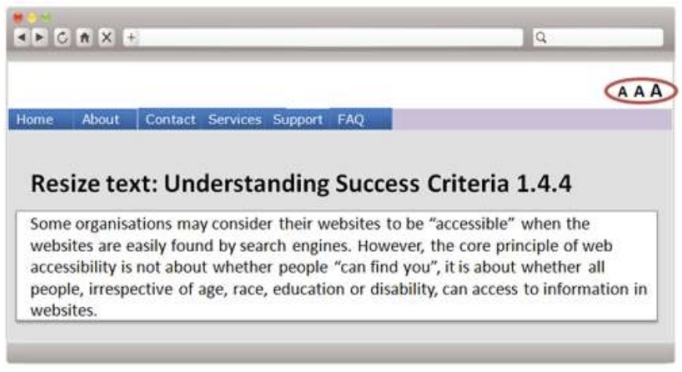
By adding a function to change the text size in the masthead, text size can be easily resized. Alternately, ensure websites are built so that built in browser text size tools work as they should. Developers should also be mindful of using proper cascading style sheet (CSS) techniques to ensure the CSS works with the built in browser resize functions.
WCAG 2.1 Reference:
https://www.w3.org/WAI/WCAG21/Understanding/resize-text
9.7 WCAG 2.1 Success Criterion 1.4.5 − Images of Text
Where possible, do not use images to display text. Accessibility tools like screen readers cannot read text inside an image and will have to rely on the image alt tag. In addition, text in images cannot be resized by browsers when a user chooses to use larger fonts.
Before Rectification
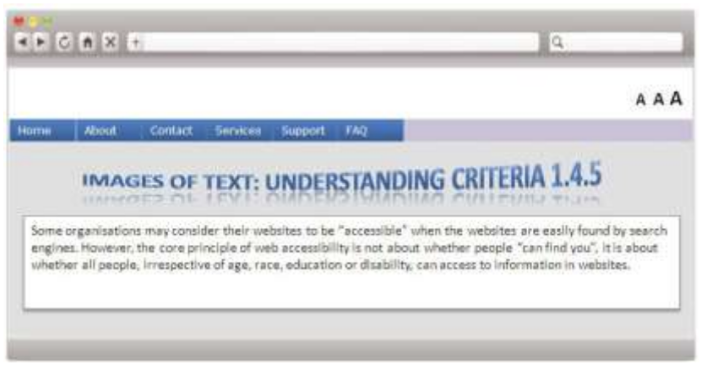
The heading on the webpage above has the risk of being read incorrectly by some screen readers or other assistive tools.
After Rectification
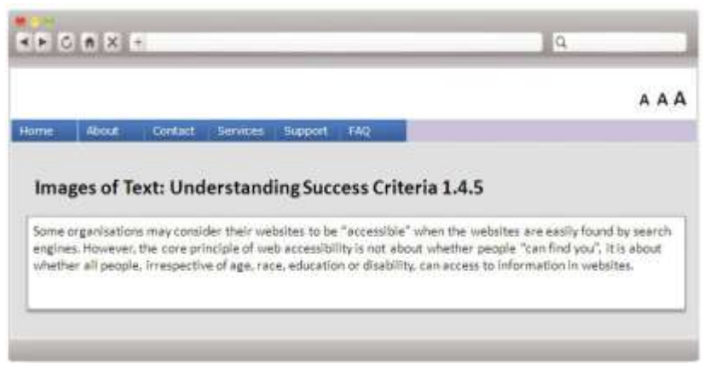
This text heading above does not use an image, thus increasing the chance of it being read correctly by screen readers or other assistive tools. Any visual design applied to this text is achieved through cascading style sheets (CSS).
WCAG 2.1 Reference:
https://www.w3.org/WAI/WCAG21/Understanding/images-of-text
9.8 WCAG 2.1 Success Criterion 1.4.10 – Reflow
When a webpage is zoomed, the content is presented without loss of information and functionality, and without requiring horizontal scrolling.
Before Rectification
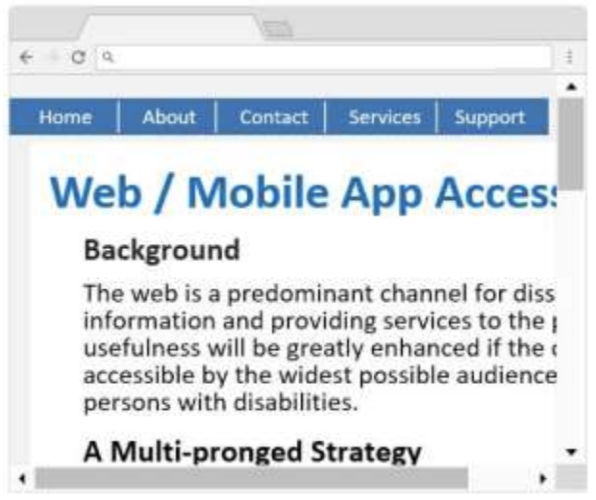
When users zoom in to enlarge the size of the content, they have to scroll both horizontally and vertically to view the content.
After Rectification
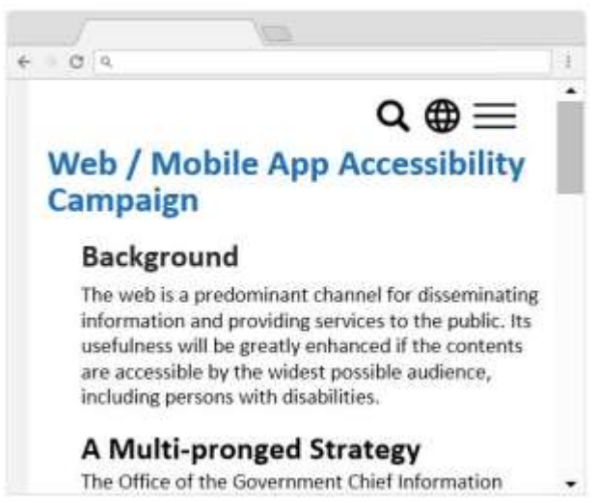
By using responsive web design, the page layout is changed automatically when it is zoomed, so that horizontal scrolling is not required.
WCAG 2.1 Reference:
https://www.w3.org/WAI/WCAG21/Understanding/reflow.html
9.9 WCAG 2.1 Success Criterion 1.4.11 – Non-Text Contrast
All non-text content (e.g. graphics, diagrams, buttons, checkboxes, radio buttons or input fields), which deliver important information, should have a minimum 3:1 colour contrast ratio against adjacent colour.
Before Rectification
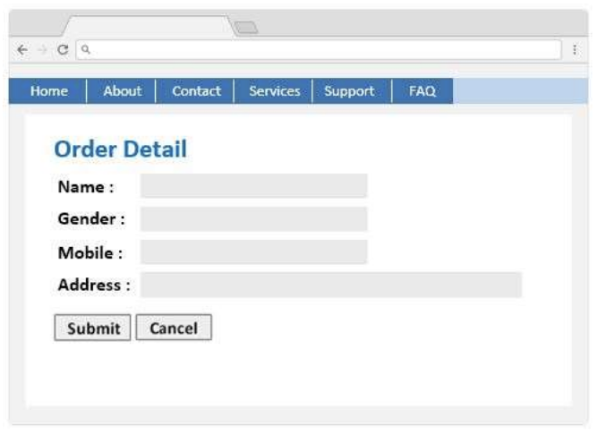
The grey textboxes on the white background have poor colour contrast, making it harder for persons with low vision to identify.
After Rectification
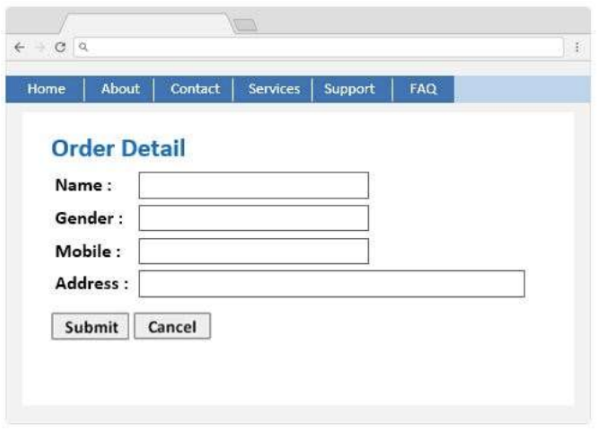
Dark border is applied to the textboxes so that they can be identified easily.
WCAG 2.1 Reference:
https://www.w3.org/WAI/WCAG21/Understanding/non-text-contrast.html
9.10 WCAG 2.1 Success Criterion 1.4.12 – Text Spacing
Ensure the content or functionality will not be lost if user overrides the setting for spacing between paragraphs, lines, words or characters.
Before Rectification
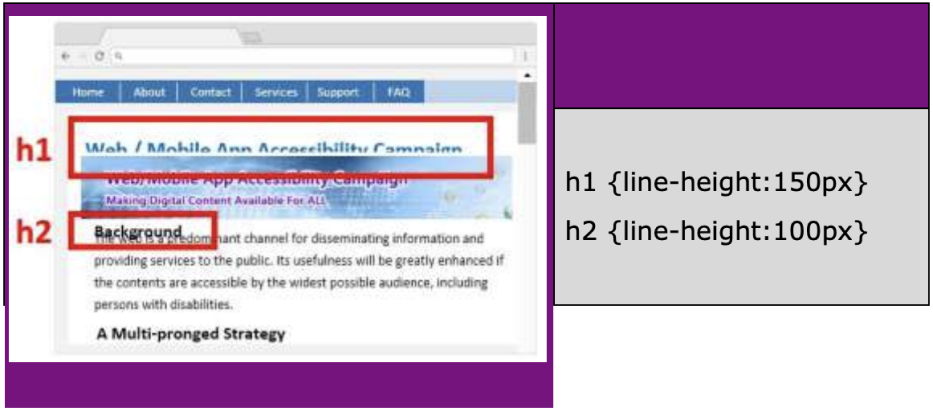
h1 {line-height:150px} h2 {line-height:100px} The line height of header (h1) and sub-header (h2) texts is defined using absolute values (i.e. number of pixels). When the user zooms in to enlarge the content of the webpage, the header and sub-header texts are cut off and become unreadable.
After Rectification
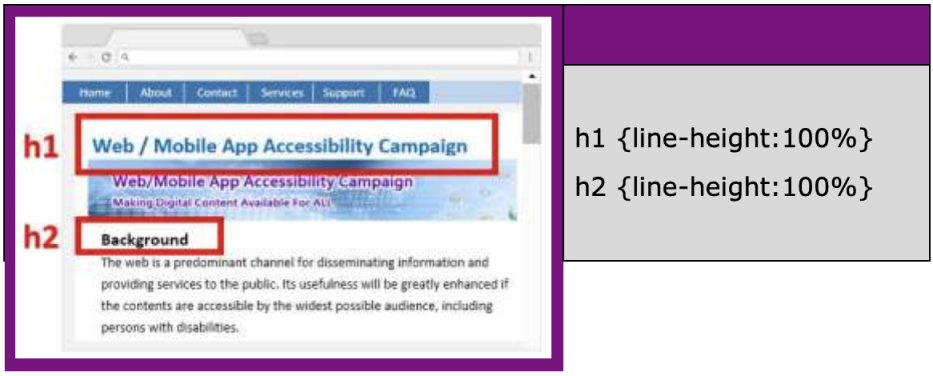
h1 {line-height:100%} h2 {line-height:100%} The line height of h1 and h2 is defined using relative values (i.e. percentage). When the page is zoomed by the user, the line height of h1 and h2 is changed accordingly such that the content can be displayed clearly.
WCAG 2.1 Reference:
https://www.w3.org/WAI/WCAG21/Understanding/text-spacing.html
9.11 WCAG 2.1 Success Criterion 1.4.13 – Content on Hover or Focus
If additional content appears on focus/hover, you should ensure all of the following:
Dismissible: User can dismiss the additional content with the keyboard without moving focus/hover, e.g. via the escape key;
Hoverable: User can move the pointer over the additional content without making the additional content disappear; and
Persistent: The additional content remains visible until the hover or focus trigger is removed, or the user dismisses it, or its information is no longer valid.
Before Rectification
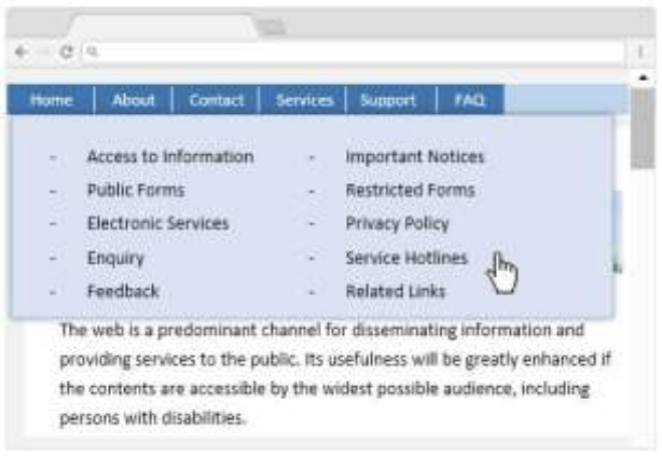
When user activates the “Support” menu via keyboard, a mega menu is displayed, which covered part of the main content. User is unable to view the content unless he/she moves the mouse pointer away from the mega menu.
After Rectification
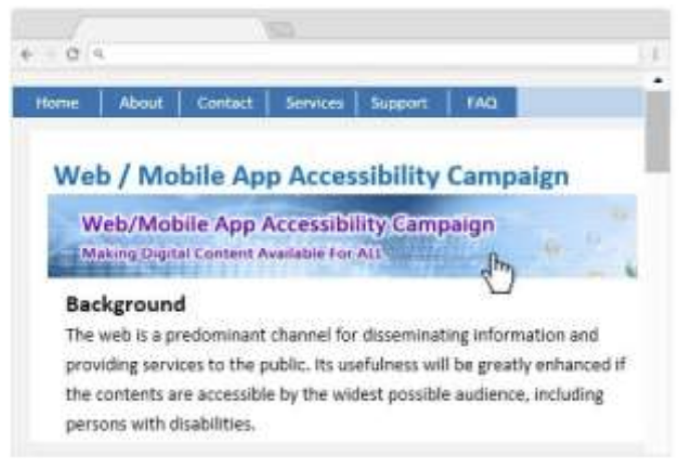
Function is added for user to close the mega menu by pressing Escape key without moving the mouse pointer.
WCAG 2.1 Reference: https://www.w3.org/WAI/WCAG21/Understanding/content-on-hover-orfocus.html
9.12 WCAG 2.1 Success Criterion 2.4.5 − Multiple Ways
Ensure there is more than one way to access a webpage, for example, by using a search function, site map, standard navigation, etc.
Before Rectification
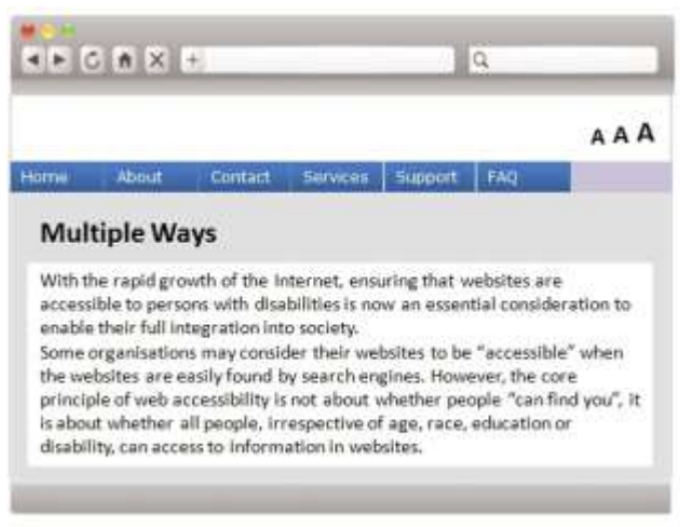
The only way to navigate around this website is through the main navigation.
After Rectification
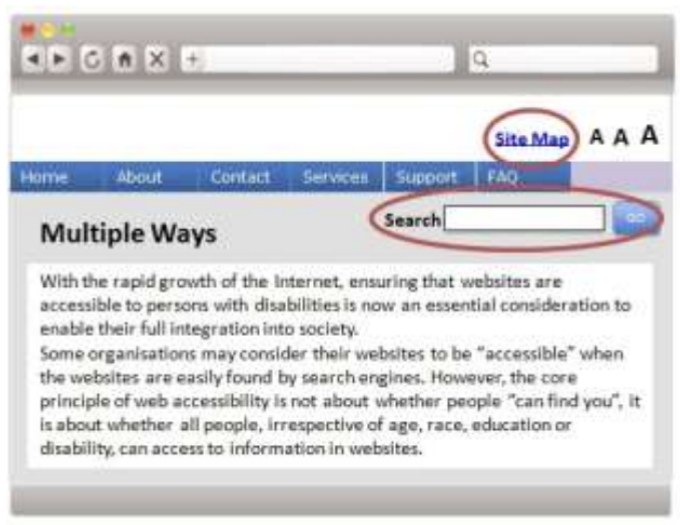
In this image, a search function and a site map have been included for users to have multiple methods available to locate the required information. Something like a site map would also be helpful to users who have learning disabilities or have difficulties in concentrating for a long period of time.
WCAG 2.1 Reference:
https://www.w3.org/WAI/WCAG21/Understanding/multiple-ways
9.13 WCAG 2.1 Success Criterion 2.4.6 − Headings and Labels
Headings and labels must be accurate descriptions of the accompanying content.
Before Rectification
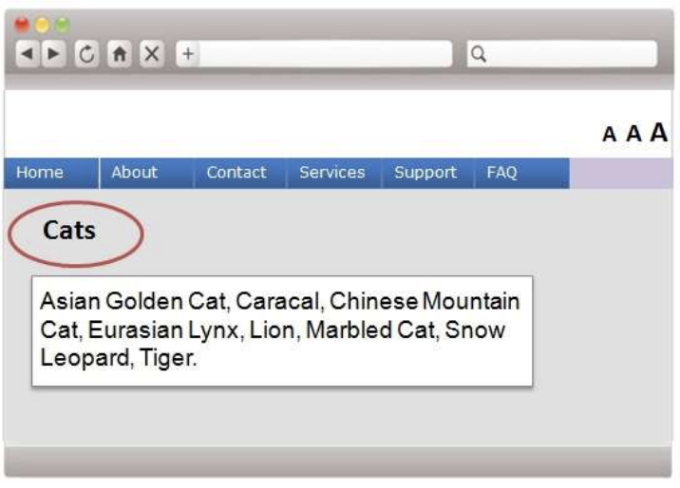
The heading “Cats” shown above does not accurately describe the purpose of the content beneath it.
After Rectification
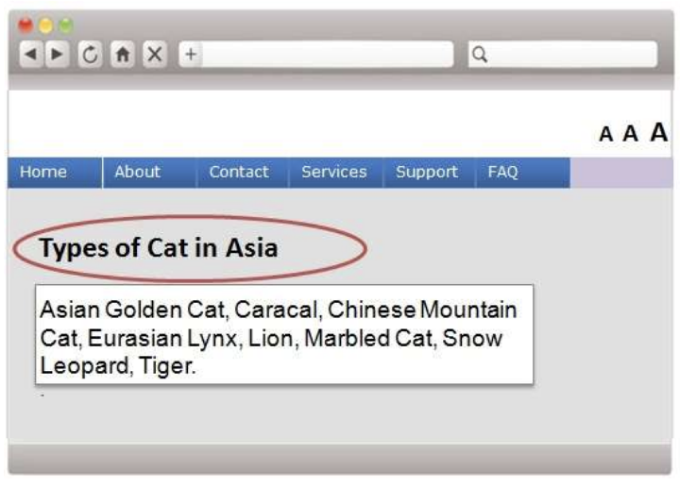
The image above however shows a more detailed heading that accurately describes the content. This would assist users using a screen reader.
WCAG 2.1 Reference:
https://www.w3.org/WAI/WCAG21/Understanding/headings-and-labels
9.14 WCAG 2.1 Success Criterion 2.4.7 − Focus Visible
When a “text field” is selected, ensure it is clear that the focus has been moved into the “text field”. For example, ensure the cursor is easily visible within the field so that users know where to begin typing.
Before Rectification
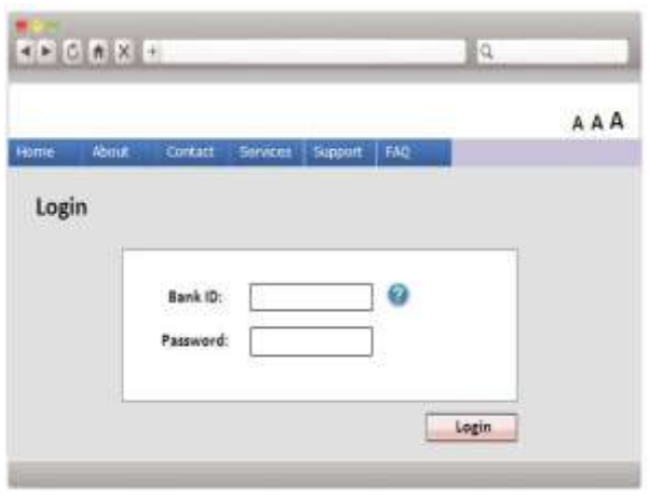
In the image above, there is no way to determine which field has the focus.
After Rectification
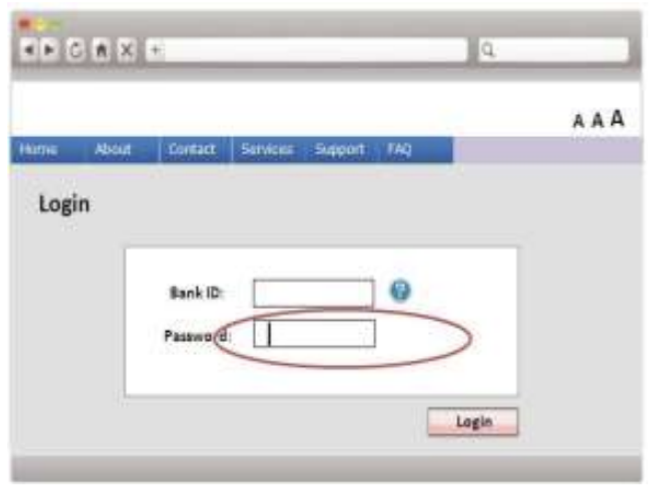
This image ensures that the vertical bar is visible. This shows that the focus is currently on the second field, and this helps those users with low vision or visual impairments determine where they are on a webpage.
WCAG 2.1 Reference:
https://www.w3.org/WAI/WCAG21/Understanding/focus-visible
9.15 WCAG 2.1 Success Criterion 3.1.2 − Language of Parts
Write content so that the language of all passages and phrases can be clearly understood. This will enable screen readers to pronounce each item in the correct language.
Before Rectification
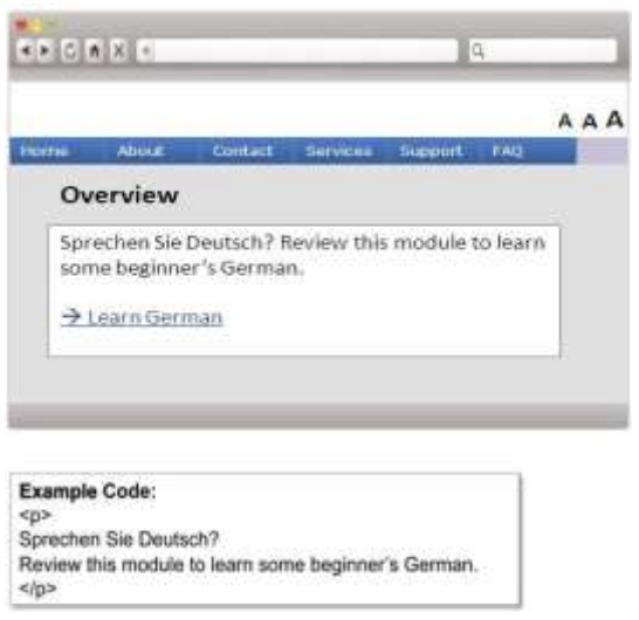
In the example above, the majority of the website is in English. However, a small section is in German. In this case, it is essential to define this change in language, so that screen readers can detect the change and pronounce correctly.
After Rectification
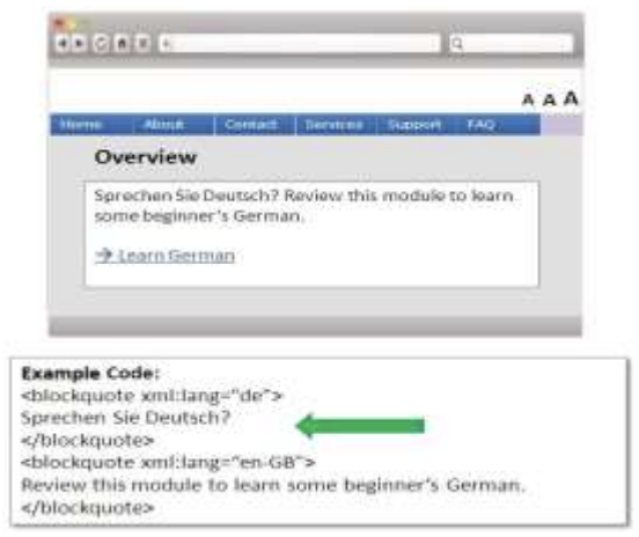
The image above shows how this code should look like so that the screen readers can detect and pronounce the words using the proper languages.
WCAG 2.1 Reference:
https://www.w3.org/WAI/WCAG21/Understanding/language-of-parts
9.16 WCAG 2.1 Success Criterion 3.2.3 − Consistent Navigation
Where navigations or links are on multiple webpages, ensure they are presented consistently across all pages.
Before Rectification
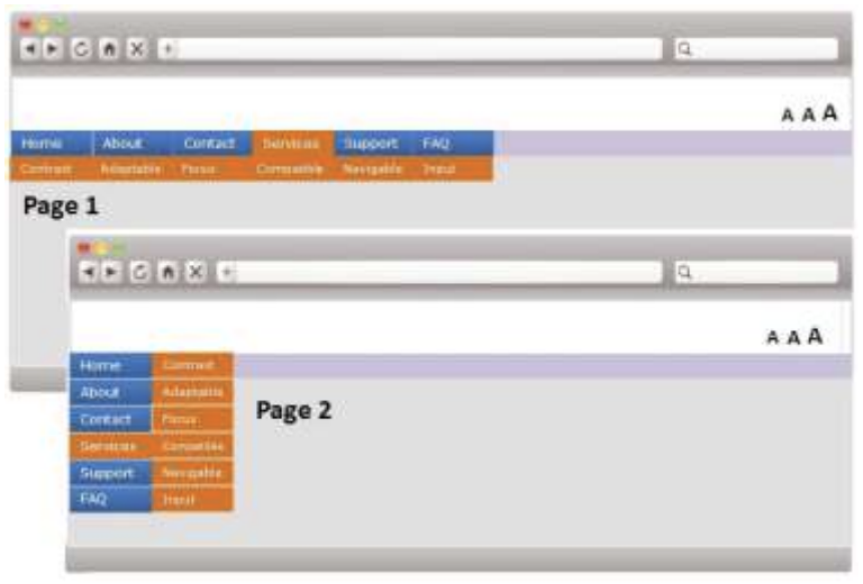
The style is not consistent across multiple webpages. This could be confusing for visually impaired persons.
After Rectification
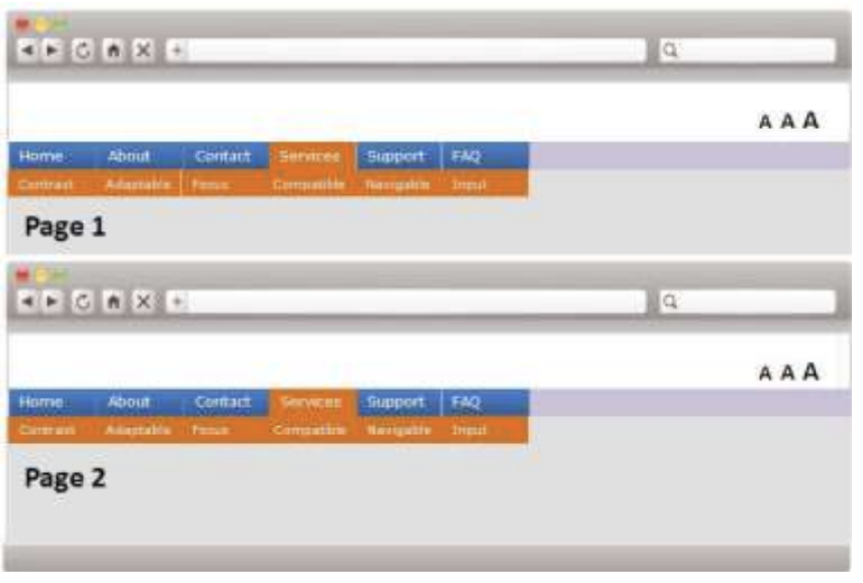
The example above shows the correct method to ensure the navigation is consistent across multiple webpages.
WCAG 2.1 Reference:
https://www.w3.org/WAI/WCAG21/Understanding/consistent-navigation
9.17 WCAG 2.1 Success Criterion 3.2.4 − Consistent Identification
For all items that have the same functionality, ensure they use the same label. For example, a “Buy Now” button on one webpage should be identically labelled as a “Buy Now” button on another webpage so that the user knows these buttons would perform the same function.
Before Rectification
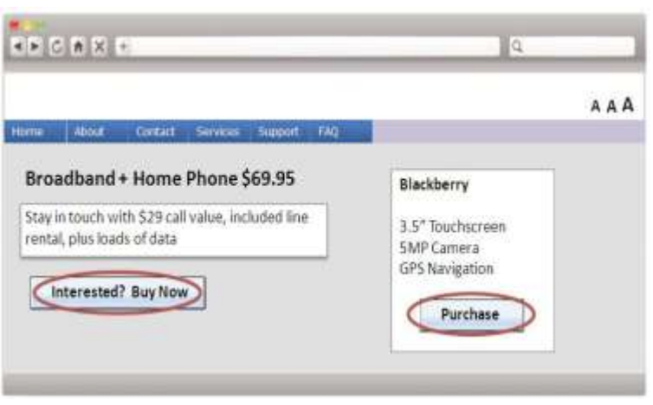
In the example above, there are two buttons each having a different label. This could cause confusion for some users, especially for those using screen readers, who may not be able to take note of the similarities between these two buttons.
After Rectification
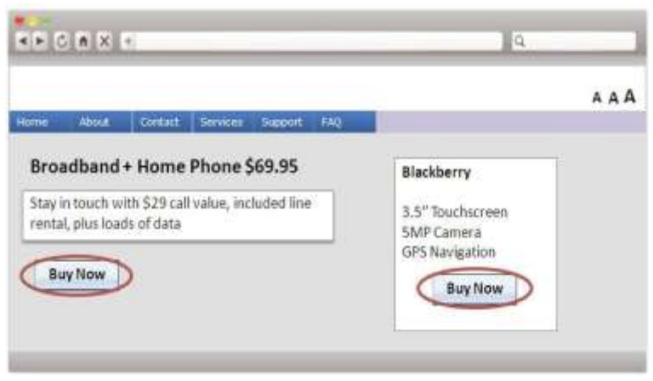
The two “Buy Now” buttons are consistent above and it is clear that both would perform the same function.
WCAG 2.1 Reference:
https://www.w3.org/WAI/WCAG21/Understanding/consistentidentification
9.18 WCAG 2.1 Success Criterion 3.3.3 − Error Suggestion
When a user makes an error and the solution can be identified automatically, always provide the user with a suggestion to fix the error.
Before Rectification
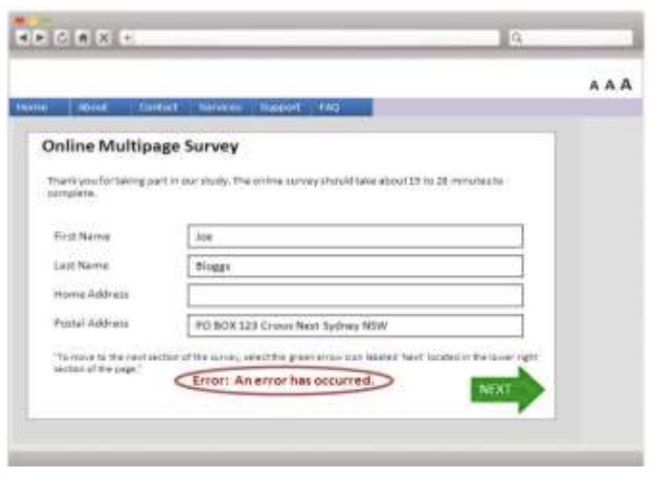
The example above shows an error message that is not helpful enough because it is located at the bottom of the webpage, and does not provide an adequate description of what needs to be corrected.
After Rectification
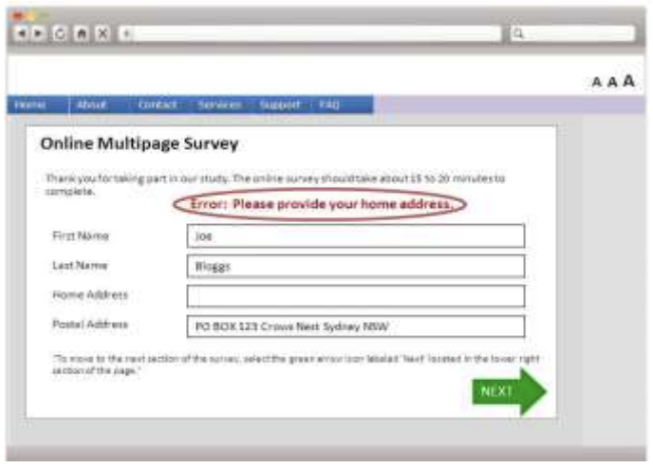
In contrast, this example shows a message that is located at the top of the webpage and provides a good explanation of what needs to be corrected.
WCAG 2.1 Reference:
https://www.w3.org/WAI/WCAG21/Understanding/error-suggestion
9.19 WCAG 2.1 Success Criterion 3.3.4 − Error Prevention (Legal, Financial, Data)
If a user has to submit data that have legal or financial consequences, make sure the system allows the user to check and confirm his/her information before submitting, or reverse the transaction after submitting.
Before Rectification
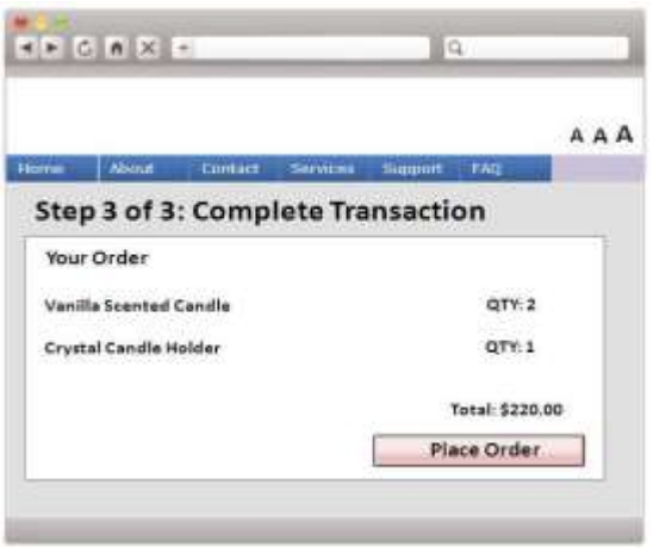
This screen indicates the last step of a transaction, in which the user is forced to place the order without a confirmation process.
After Rectification
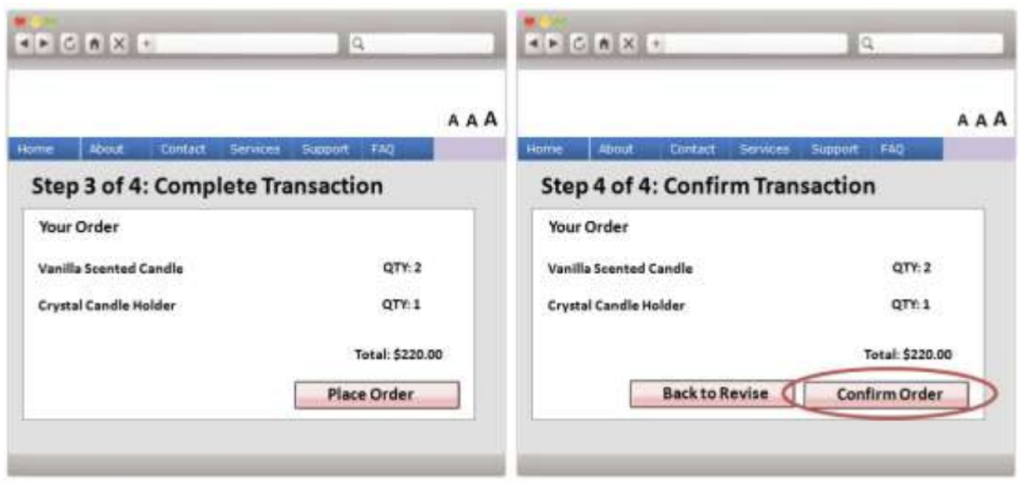
It is better to allow the user to first confirm and give him/her the option to change any of the details before the final submission.
WCAG 2.1 Reference:
https://www.w3.org/WAI/WCAG21/Understanding/error-preventionlegal-financial-data
9.20 WCAG 2.1 Success Criterion 4.1.3 – Status Messages
For any visible status message (e.g. error or success message subtly added to a page), users should be informed by means of assistive technology tools even though the status message is not in focus. One possible way to implement this criterion is to define the Accessible Rich Internet Application (ARIA) role (status, alert) or Live Regions.
Before Rectification
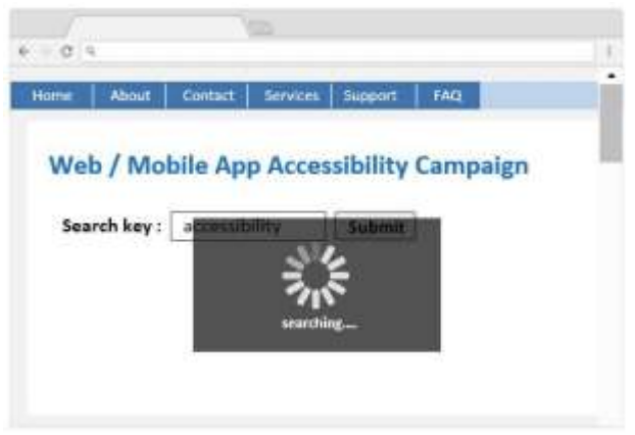
A spinning logo with “searching” status message appears after user initiates the search function. However, screen reader cannot read out the status message because it is not in focus.
After Rectification
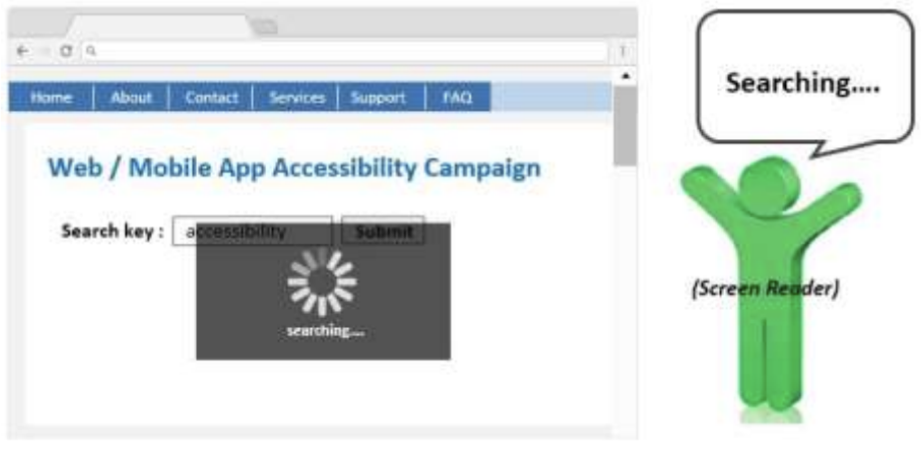
By assigning appropriate ARIA role to the status message, the screen reader is able to read out the message to inform users about the content change even though the status message is not in focus.
WCAG 2.1 Reference:
https://www.w3.org/WAI/WCAG21/Understanding/status-messages.html
10. Five Testing Techniques for Web Accessibility
To ascertain web accessibility, testing is the key to finding and understanding issues to be rectified along the way. Five techniques for web accessibility testing are outlined below.
10.1 Code Scanning
Many accessibility issues can be detected automatically using software tools. These tools should be used to test the webpage coding during the development stages and when performing a web accessibility audit of a website.
After completing code scanning and when all identified issues are rectified, carry out other forms of testing as mentioned below to check for items that cannot be tested automatically.
Example Tools:
AChecker
Total Validator
WAVE
10.2 Visual Review
A great deal can be learnt about the accessibility of a website just by visual browsing while having in mind the following questions:
Can the content be easily read?
Can the forms for collecting input be used effectively?
We suggest paying particular attention to anything visual that might not work well for persons with visual impairments, for example:
Is the text too small?
Does it use pale coloured text on a pale background, making the text hard to read?
A simple look at a website can reveal many potential web accessibility issues for persons with disabilities.
Some recommended approaches that should be included in a visual review are:
Turn off cascading style sheets (CSS). This is how your website will often be interpreted by screen readers. Does the content have a logical flow and structure?
Try using the built in browser text enlargement functions. Do they work?
Try moving around the webpages using just a keyboard. Can we access all the links and functions?
Example Tools:
Colour Contrast Analyser
WCAG Contrast Checker
Web Developer (Firefox plugin)
10.3 Manual Testing with Screen Readers
An easy way to experience how persons with visual impairments use a website is to simply turn off the monitor and attempt to use the website with screen readers.
Navigate the website and determine just how much information we can access through the screen readers.
Try reading the headings, navigations, images, and also test more complex features such as input forms and tables.
Example Tools:
JAWS
NVDA
VoiceOver
Windows Light
10.4 Testing with Other Tools
Other than screen readers, persons with disabilities may use a variety of other tools to interact with a website. Two particular types of widely used tools are:
Screen Magnification Tools – these commonly used tools allow people to zoom into sections of a screen and change the contrast levels.
Test a website with these tools and rectify issues found.
Voice Control Tools – some severe motor disabilities leave using voice commands as the only means to interact with a website. People speak into a microphone with commands such as “next link”, “go”, etc.
Testing using these tools reveals issues which are difficult to identify through the other methods.
Example Tools:
ZoomText Magnifier
Dragon NaturallySpeaking
10.5 Human Testing
The most thorough approach to ensure web accessibility is to test a website with persons with various disabilities to learn what areas are difficult for them to access. As this testing method requires more time and resources, it is best to first undertake the above four types of testing methods to rectify as many web accessibility issues as possible, and then use human testing at later stages of a project to uncover more subtle issues.
Some organisations supporting persons with disabilities can help by providing free or affordable human testing services. These organisations include Direction Association for the Handicapped, Hong Kong Blind Union, Hong Kong Sign Language Association, the Hong Kong Society for the Blind and Retina Hong Kong. Website owners may contact these organisations for assistance.